
Lucid Visual Collaboration Suite

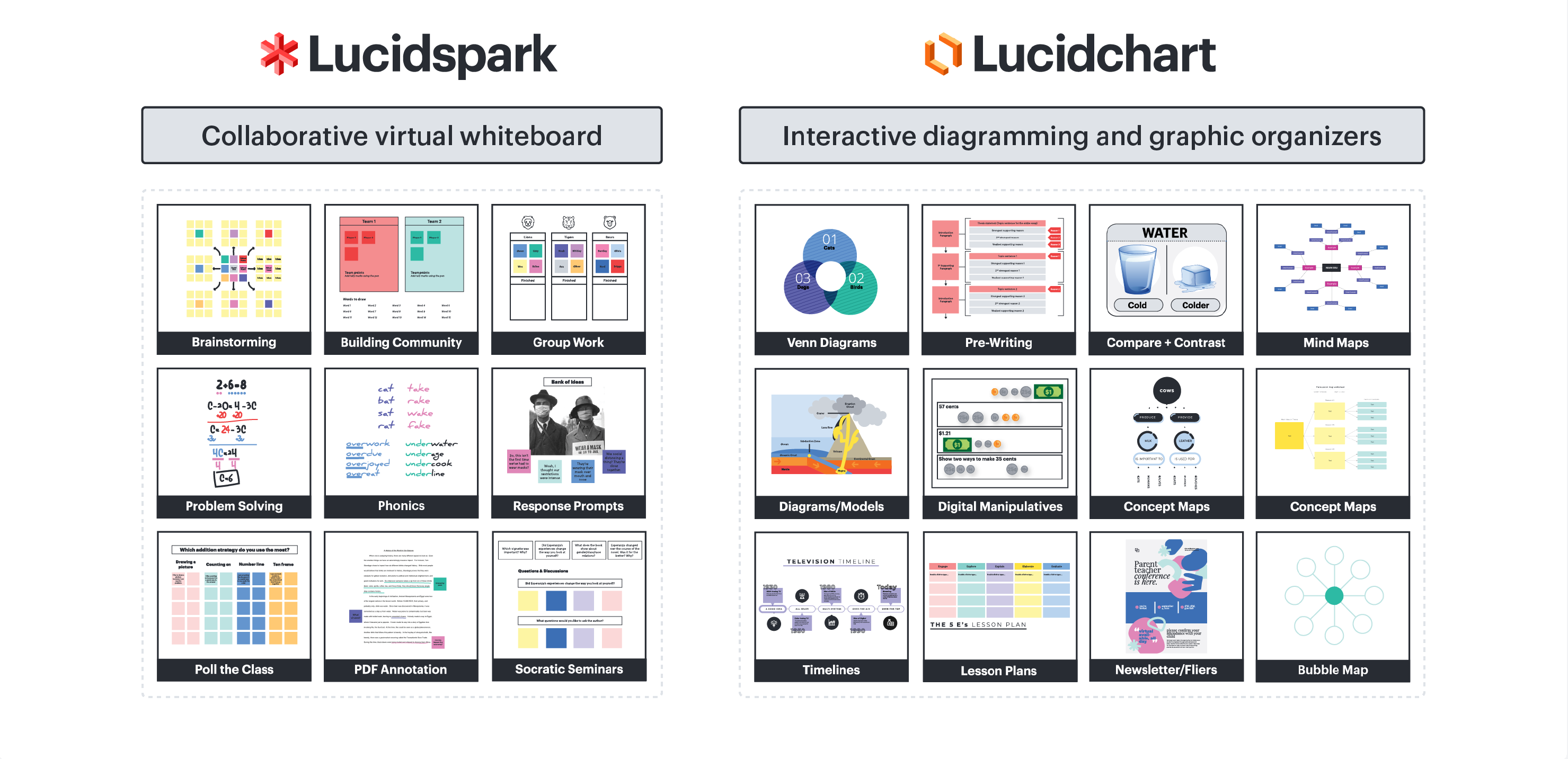
Lucid Visual Collaboration Suite brings together Lucidspark and Lucidchart to help faculty, staff, and students brainstorm, organize ideas, map processes, and collaborate visually. They are a shared visual workspace for planning, designing, building, and launching work from an infinite canvas.

All instructors and students receive a license to the entire Lucid Education Suite directly through Canvas.


Overview

At a Glance

Lucid Visual Collaboration Suite includes two main tools:

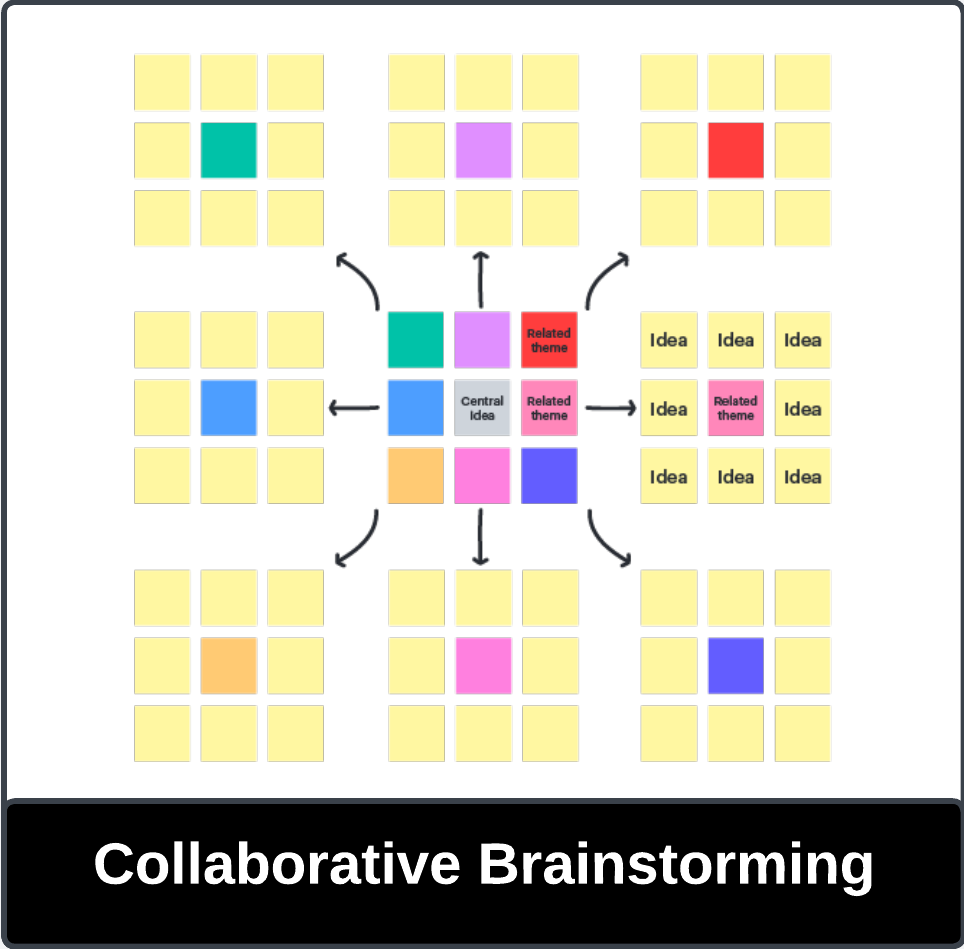
Lucidspark is a virtual whiteboard for brainstorming, collaboration, planning, and group activities.

Lucidspark Introduction: In under a Minute

Lucidchart is an intelligent diagramming tool used to create flowcharts, concept maps, organizational charts, process diagrams, system designs, and other visual documents.
Lucidchart Introduction: In under a minute

Training & FAQs

Quick start guides, instructional resources, and video tutorials are available to help instructors and students get started with Lucid.

Faculty can explore the Higher Ed Instructor Hub, the Intro to Lucid in Canvas asynchronous course, and use-case examples from other instructors.

Students can access video tutorials and the Student Resource Hub for help using Lucidspark and Lucidchart in Canvas.

Access Lucid Visual Collaboration Suite

To access Lucid, open Canvas and launch Lucid from your course, assignment, or Canvas integration options. The first time users access Lucid, they may be prompted to activate or connect their Lucid account.

Instructors can create Lucid assignments in Canvas by selecting Lucid as the submission type when setting up an assignment.


Login to Canvas

Getting Started

Canvas allows instructors to create interactive assignments using Lucidspark or Lucidchart directly within the site. Students can brainstorm, diagram, map ideas, collaborate visually, or complete structured templates as part of a graded submission. 

How to Create an Assignment with Lucid in Canvas 

Visualize the Experience

To get started, instructors are encouraged to explore Lucid Visual Collaboration Suite within their Canvas course. Lucid can be accessed through Canvas to create and share visual collaboration activities using Lucidspark and Lucidchart.

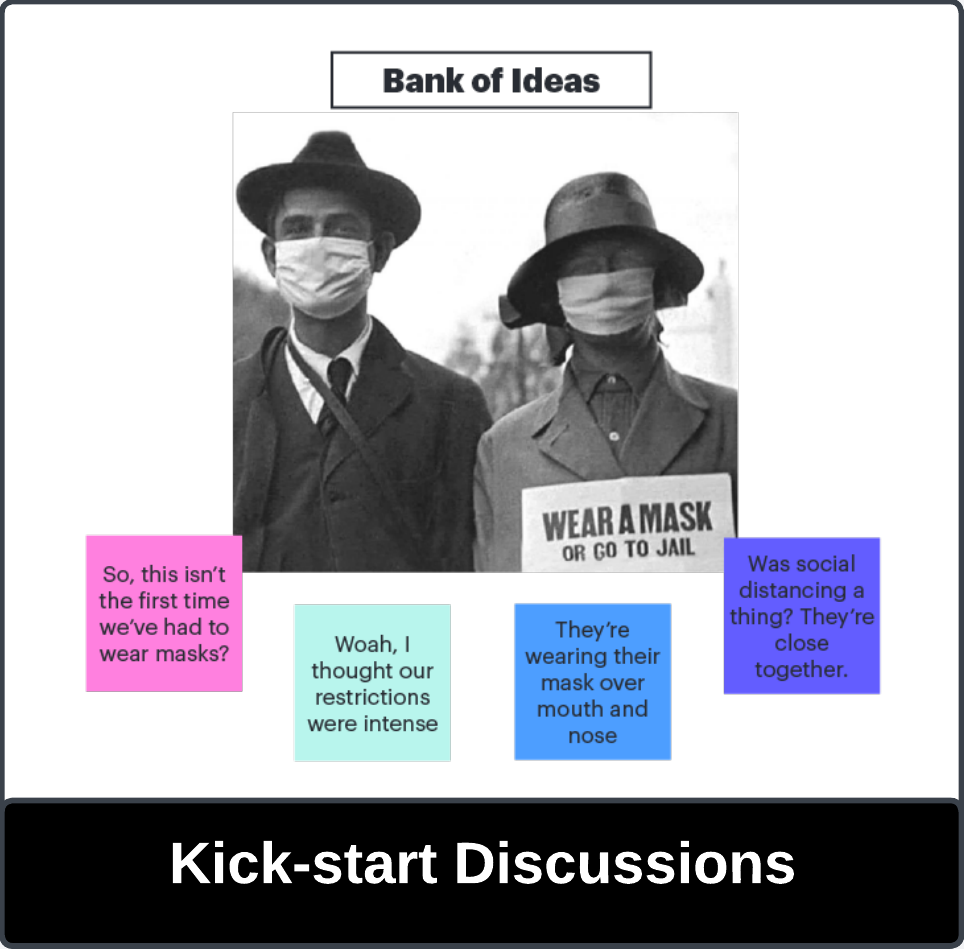
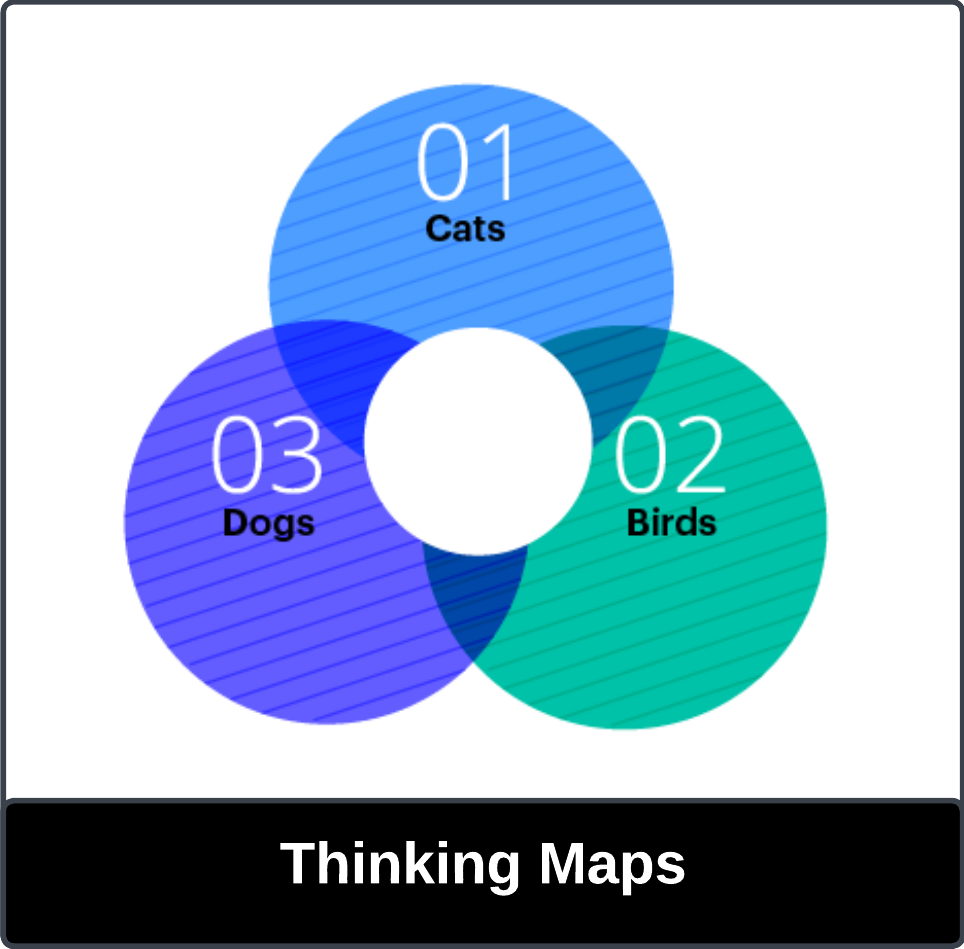
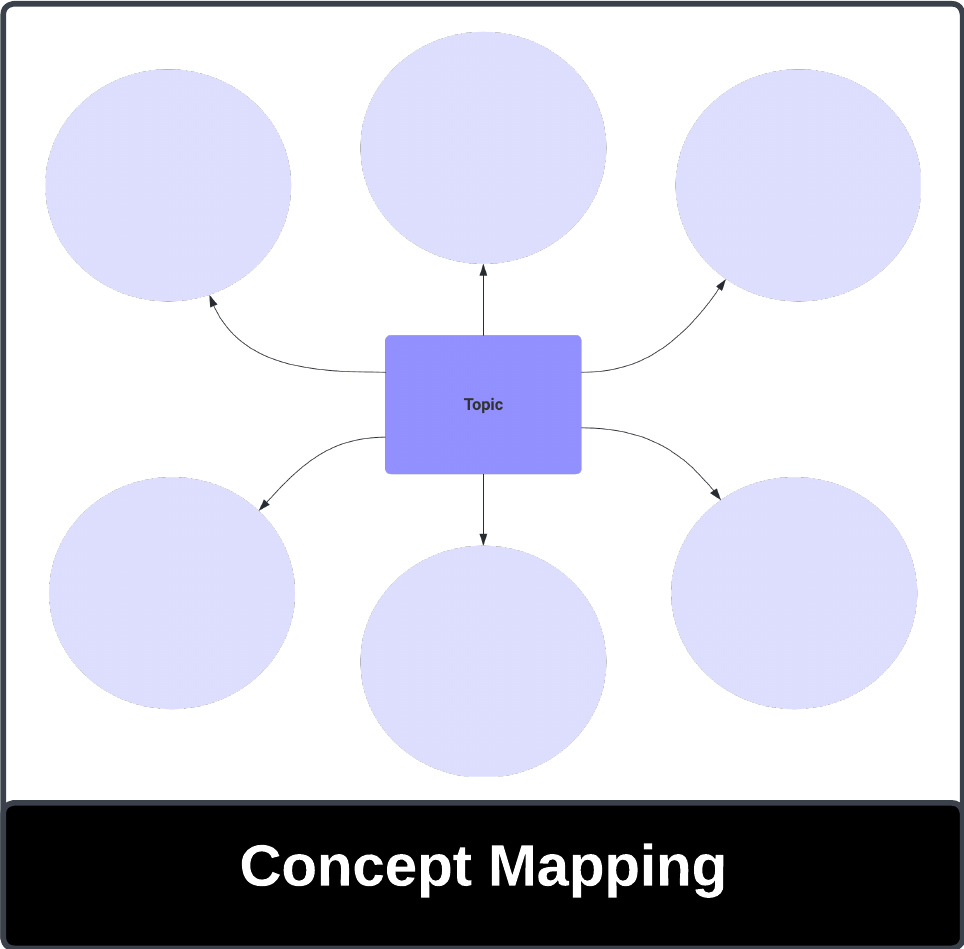
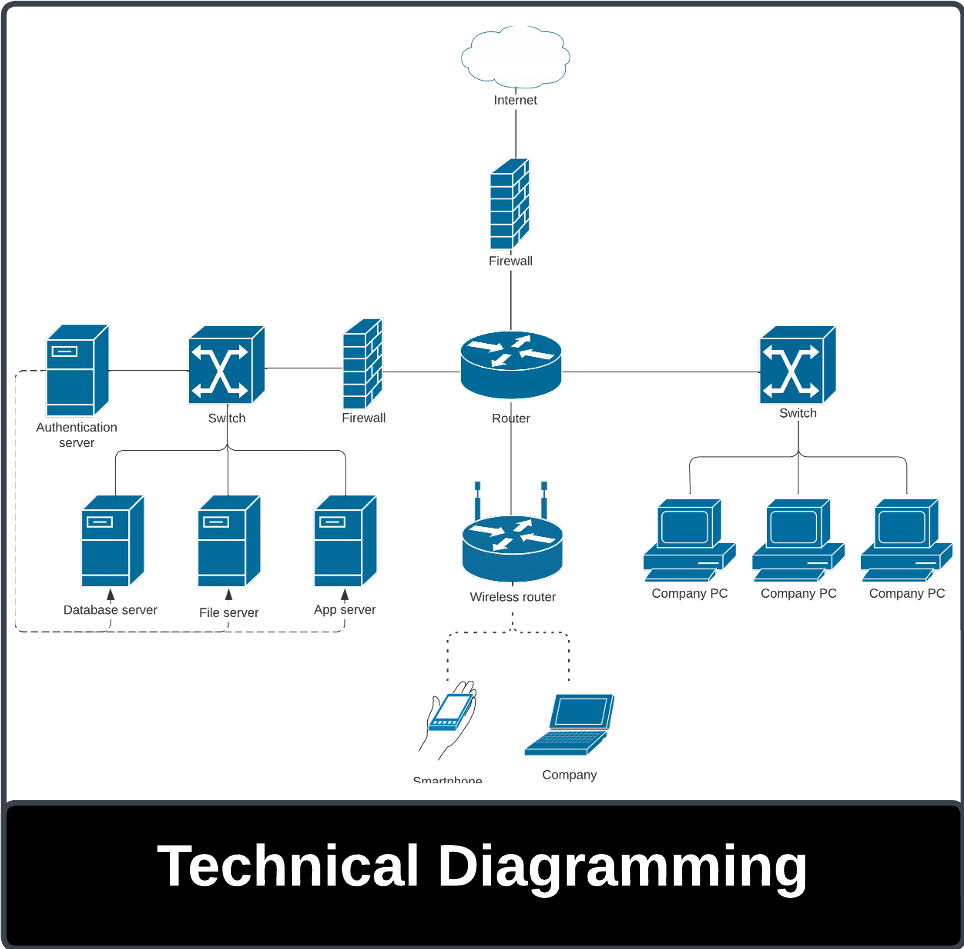
Instructors can use Lucid to support brainstorming, concept mapping, diagramming, group collaboration, and other interactive course activities. Once a Lucid activity or assignment has been created, it can also be added to the Modules area to provide students with easier access. The images below demonstrate example views and use cases of Lucid Visual Collaboration Suite.

Lucidspark Examples

Open All Tabs
  • Brainstorming

    Students can use Lucidspark to quickly generate, organize, and connect ideas on a shared virtual whiteboard.

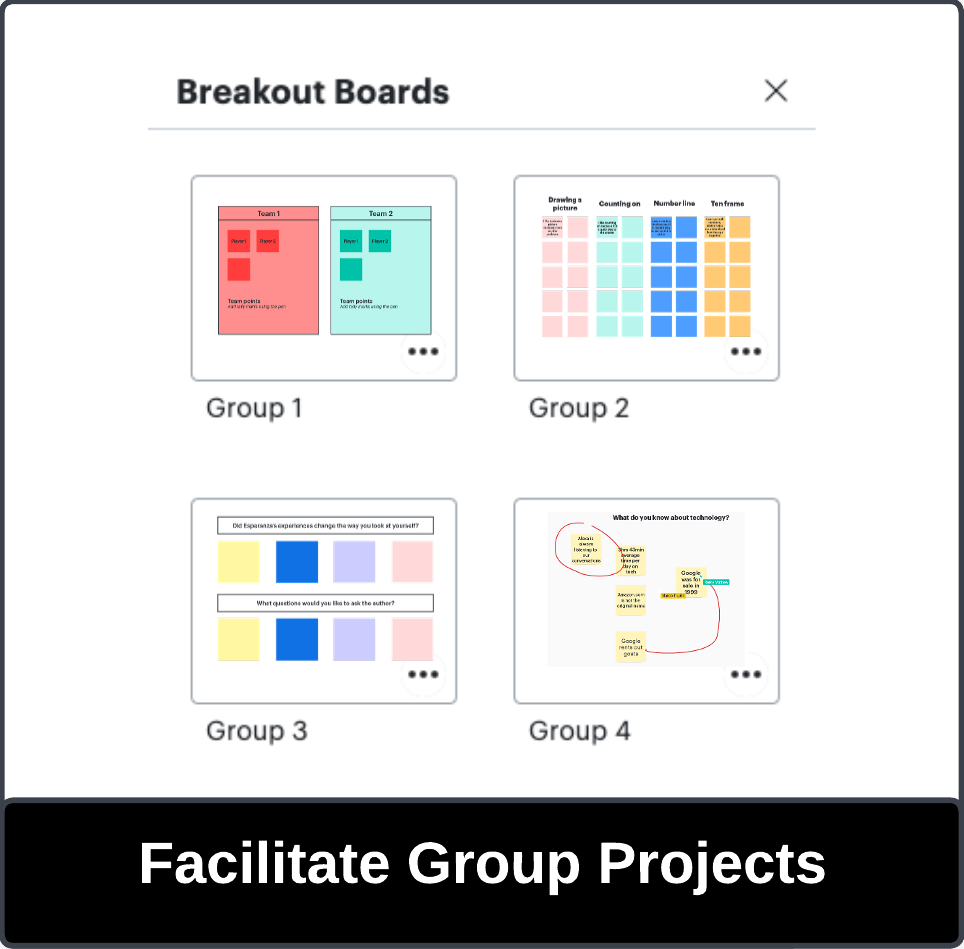
  • Group Work

    Students can collaborate in real time by adding notes, comments, and visuals to a shared Lucidspark board. 

  • Response Prompts

    Students can use Lucidspark to respond to discussion questions, images, readings, or case studies by adding sticky notes, comments, and visual annotations on a shared board.

Lucidchart Examples

Open All Tabs
  • Mind Maps

    Students can use Lucidchart to organize ideas visually and show how concepts connect to one another.

  • Concepts Maps

    Students can use Lucidchart to map relationships between topics, terms, processes, or course concepts.

  • Diagrams/Models

    Students can use Lucidchart to create clear visual models of systems, processes, workflows, or structures.

Training

Cards

Support

Need to report technical issues or request support with Lucid?

Contact the Learning Platforms Helpdesk at contact us.
Contact Lucid Support: Submit a Ticket

Top