


Navigate360 | Student Success

EAB navigate logo


At the University of Miami, Navigate360 is used as a student information, communication, and early alert system that connects students, advisors, faculty, deans, and staff in a coordinated support network. The platform helps the University proactively identify students who may need additional support and facilitates timely outreach and interventions through improved coordination and access to resources. Through Navigate, faculty and staff can view student records, communicate with students, connect them with appropriate services, schedule appointments, run reports, and collaborate across departments to support student success. 

Overview

Cards

At a Glance

Student portal: Coming soon!

Professional advising hub: Key features include appointment scheduling, progress reporting, a coordinated referral network, advanced search, and data analytics.

Personalized student support: Streamlines communication between students, advisors, and campus partners.

Centralized success tools: Brings advising resources, student records, and engagement tracking into one platform.
Getting Started

Begin with these key resources, additional tip sheets, including quick-start guides to get you started are listed below.

Select the University of Miami to be redirected to UM’s Single Sign-On and access the Help Center..

Quick Start Guide Progress Reports Ad-hoc Progress Reports

Access Navigate

Access to Navigate360 is automatically provided to instructors, assigned staff, and fully matriculated students. All other users must request access by submitting a Canelink security role access form.

FERPA Training
Complete FERPA training in ULearn if not done within the past 12 months.

CaneLink/Navigate Access Form
Every individual user must submit their own completed form in order to process.

Login to Navigate

Visualize the Experience

Once logged in, Staff Home serves as your central hub for managing appointments, alerts, and student interactions. The steps below walk through the new user experience from access request to day-to-day use.

The Professor Home page is where most faculty users arrive when opening Navigate360. It allows you to view key tools that enable you to take action on student success-related tasks, such as filling out Progress Reports, recording class attendance, or managing assignments.


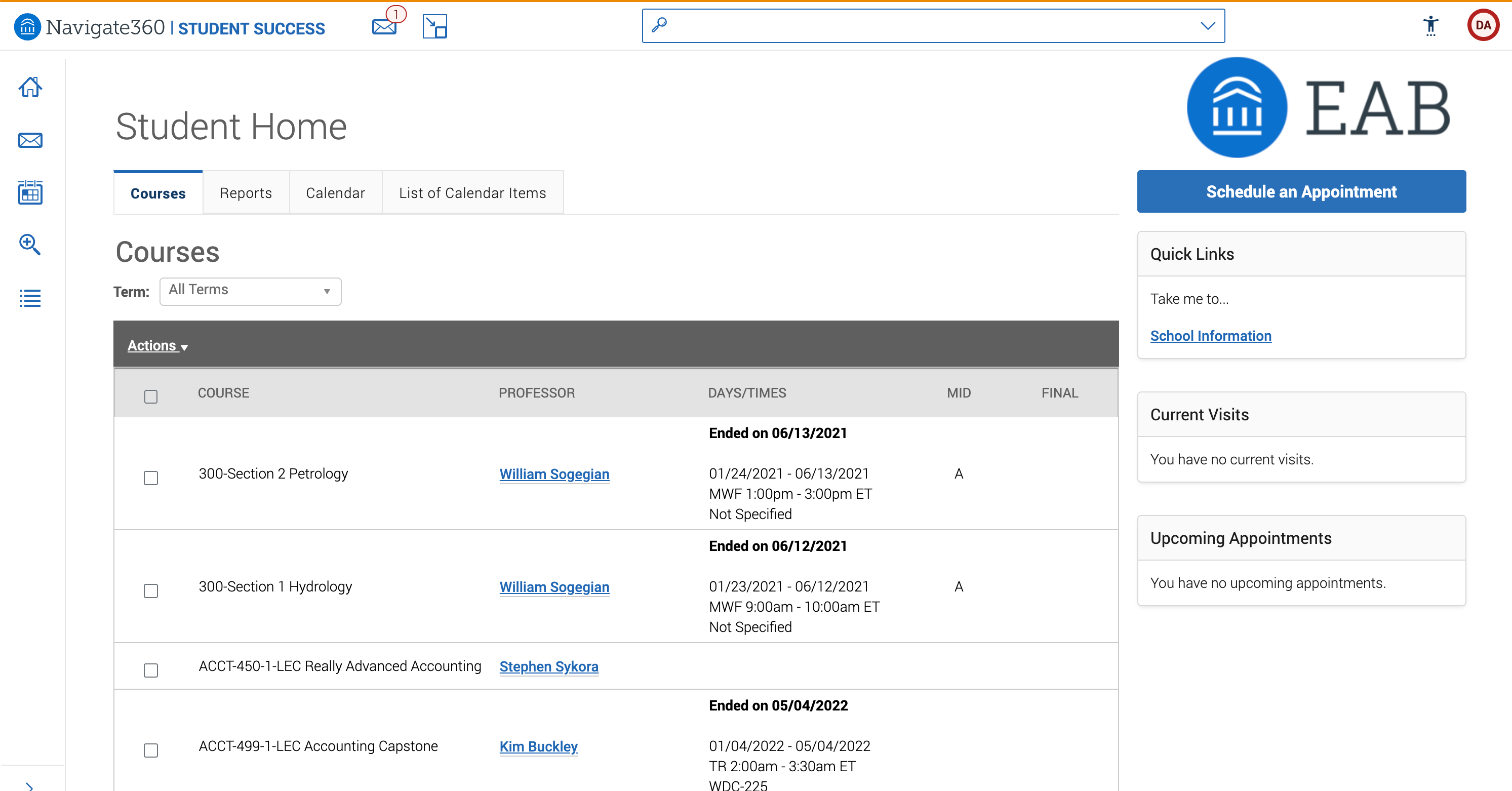
Student Home is where all students arrive when opening Navigate360 Staff. It primarily allows students to schedule appointments with staff members who are using the Navigate360 Staff platform.

Key Workflows

Open All Tabs
  • Gaining Access

    Instructor and student access

    Access to Navigate360 is automatically provided to instructors, and fully matriculated students. Staff assigned to students as advisors in Canelink will also receive access to Navigate. No further actions are necessary. 

    All other users must request access by submitting a Canelink security role access form.

    Professional staff supporting students

    Professional staff supporting students, but are not assigned to students as their advisor or success team, can request access to Navigate with specific roles.

    💻 Complete FERPA Training: Before accessing Navigate360, all users must complete FERPA training to ensure student data is handled appropriately. If you have not completed the FERPA Training module within the last 12 months, then you will need to complete the FERPA training again. FERPA training is conducted through a ULearn Module. Log into ULearn and search for "FERPA Training"

    📋 Request Access: Submit the CaneLink access form to request your Navigate360 account. Access is role-based and provisioned by the UM Information Technology & Systems department. CaneLink access requests must be submitted using this form. Submit a separate request for each employee you wish to request access for. Access will not be granted without your supervisor’s formal approval in the automated process. You can view this guide for submitting requests. Complete The Form

  • Logging In

    Login to Navigate

    Log in at https://umiami.campus.eab.com/ using your UM credentials.

  • Progress Reports

    Progress Reports are a tool for professors to provide feedback to the student and to help identify students of concern so that advisors and other student support staff on campus can have a more holistic sense about their students' academic support needs. The Office of the Provost through the Dean of Undergraduate Affairs launches the mid-term progress report campaign for all undergraduate students around week 7 of fall and spring semesters, which remains open for 3 weeks. The specific dates for when the campaign opens and closes are listed on the Academic Calendar every semester.

    The Mid-Term Progress Report Campaign is supported with communication of resources to students and meeting requests from students' assigned academic advisors for those with 2 or more alerts that a student may not pass the course.


  • Ad-Hoc Progress Reports

    Faculty are able to create progress reports outside of the progress report campaign schedule.  This can be particularly helpful if an instructor wants to raise concerns or share kudos for doing well with a student earlier or later than a scheduled campaign.

  • Creating and Managing Appointment Availability

    Appointment availability is an important step for staff to leverage Navigate360's appointment scheduling and management capabilities. It determines when students can schedule appointments or drop in with you. 

  • Calendar and Calendar Syncing in Navigate360

    To access the Calendar tab, click the calendar icon in the left-hand navigation bar. You have access to three views – Calendar View, List of Calendar Items, and Settings and Sync. 

    Calendar View

    View the calendar by any day, week, or month time frame. Selecting one of the checkboxes in the legend above the calendar grid enables associated appointments to show on the calendar grid and deselecting the checkbox hides them. All options are automatically selected by default.

    The Calendar tab in Navigate360 displays scheduled appointments, events, courses, and busy times. After setting availability, the next step is setting up the calendar syncing between your Outlook calendar and Navigate360. This will ensure that appointments can flow between your Navigate360 calendar and Outlook calendar, blocking off that time and preventing double booking

    Sync your Office 365 calendar to avoid scheduling conflicts.

  • Learn Additional Key Workflows

    Get comfortable with the core tasks you'll use regularly: searching for students, issuing alerts, and documenting interactions.


Training

This section highlights guides and tutorials from EAB Navigate360 Student Success

When accessing EAB Help Center articles, select University of Miami at the sign-in prompt to be redirected through UM's SSO.

Cards

Support

Request Technical Support

Need to report technical issues or reuqest support with Navigate? Contact the Learning Platforms Helpdesk at contact us.

Submit a Consultation Request

If you are exploring ways to leverage Navigate, considering changes to your existing business processes, or want to know more about what options are available, then feel free to request a demonstration and consultation with the team at Center for Academic Navigation and Success to learn more about how it can support your team! Request a Consultation

Explore the EAB Navigate Help Center

The EAB Navigate Help Center is a comprehensive, partner-only online resource hub designed to support users of the Navigate360 student success management system. It provides 24/7 access to, step-by-step guides, best practice toolkits, video tutorials, and technical documentation covering both staff workflows and student-facing features.

Top