
Turnitin

Turnitin Feedback Studio helps instructors support academic integrity and streamline assignment feedback by checking student work for similarity and enabling efficient, high‑quality commenting workflows. It provides similarity checking and instructor‑focused feedback tools within Canvas, and serves as the University of Miami’s planned functional replacement for SafeAssign. Feedback Studio includes robust similarity reports, reusable QuickMarks, rubrics, inline annotations, and voice comments to help instructors deliver consistent, meaningful feedback efficiently. 


Quick Links:  Visualize the Experience - TrainingSupport

More resources to come on the Turnitin experience!

Overview

At a Glance

Similarity Checking: Compares student submissions to global sources and displays matched text with links.

Instructor Feedback Tools: QuickMarks, custom rubrics, inline comments, and voice memos.

Canvas Integration: Fully integrated via LTI assignments created and graded within Canvas.

Training & FAQs

A quick start guide and instructional resources are available here.

Access a demo from Turnitin it will open in a new browser: Demo 1 (With tour and guide).

Access live workshops from Turnitin

Access Guide Access Demo Access Workshops

Access Turnitin

Instructors enable Turnitin when creating assignments; students submit work through the Canvas assignment flow.

Quick Tip: Click the three dots next to the + Assignment button, select Turnitin and set up your tool. To show to students, under Modules, click the plus icon by a module, choose "Assignment" from the drop-down menu, then select and add your assignment to the module.

Login to Canvas

Visualize the Experience

To get started, instructors are recommended to test out Turnitin Feedback Studio in their Canvas sandbox course. Turnitin is available in the 'Assignments' area within Canvas, and once an assignment is added, it can be added to the Modules area for easy access for students. Canvas screenshot showing the Assignment button’s options menu expanded, with an arrow pointing to the Turnitin option for creating a Turnitin assignment.

Click the images demonstrate below to see example views of Turnitin Feedback Studio.


Turnitin Create Assignment page including fields for assignment title, instructions box, scheduling dates, max points, rubric attachment, and submission settings.

Screenshot of the Turnitin Create Assignment page including fields for assignment title, instructions box, scheduling dates, max points, rubric attachment, and submission settings.

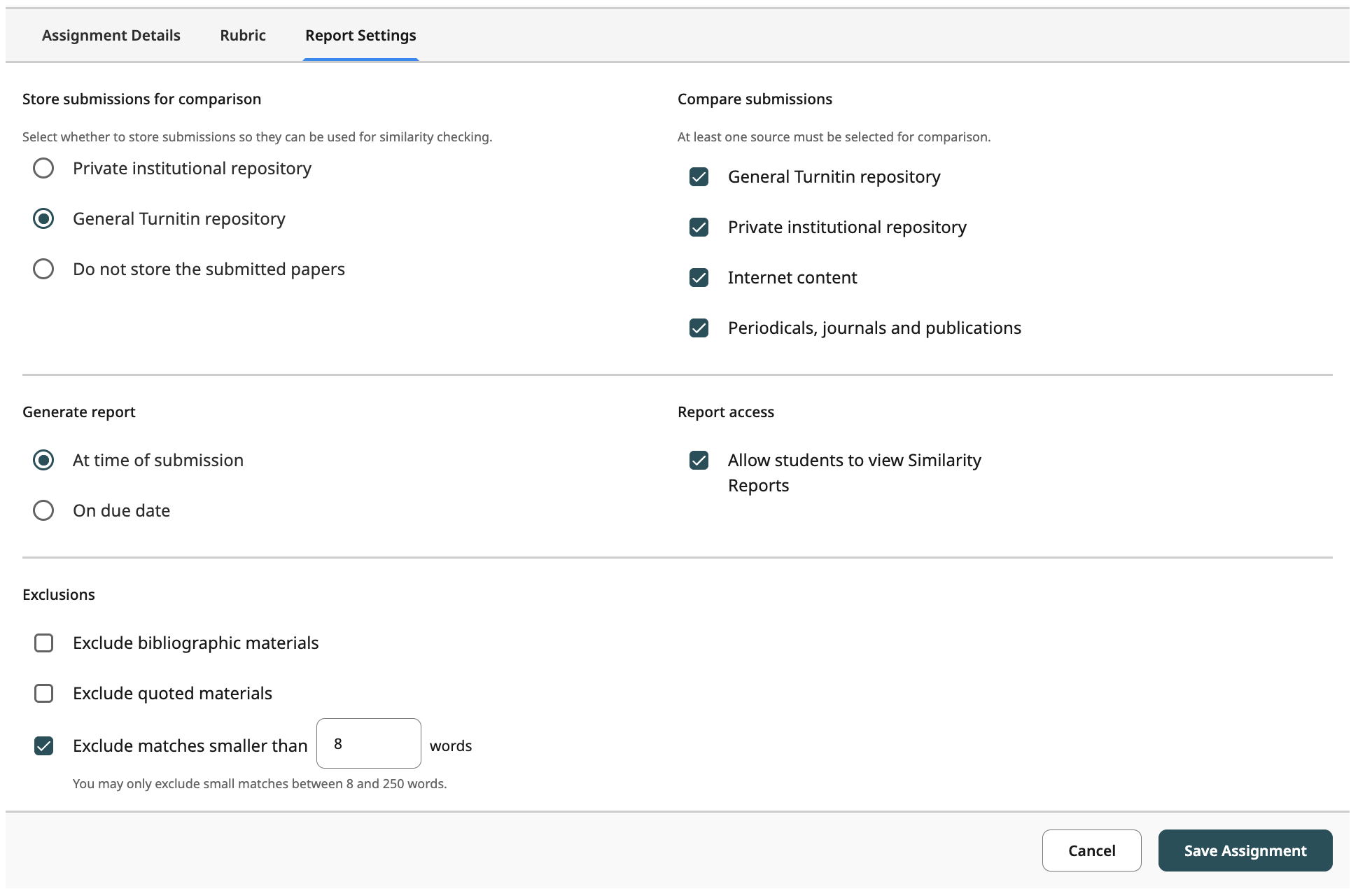
Turnitin Report Settings tab showing options for storing submissions, sources to compare, similarity report generation timing, student report access, and exclusion rules. Screenshot of the Turnitin Report Settings tab showing options for storing submissions, sources to compare, similarity report generation timing, student report access, and exclusion rules.

Turnitin Feedback Studio showing a student paper with color‑coded similarity highlights and a right‑side panel presenting the overall similarity percentage and detailed match groups.

image of assignment paper marked up with highlighted text, and sources highlighted

Turnitin Feedback Studio displaying a student paper with highlights and the Summary Comment panel expanded on the right, showing instructor comments and pinned feedback.

image of assignment paper marked up with highlighted text, and sources highlighted

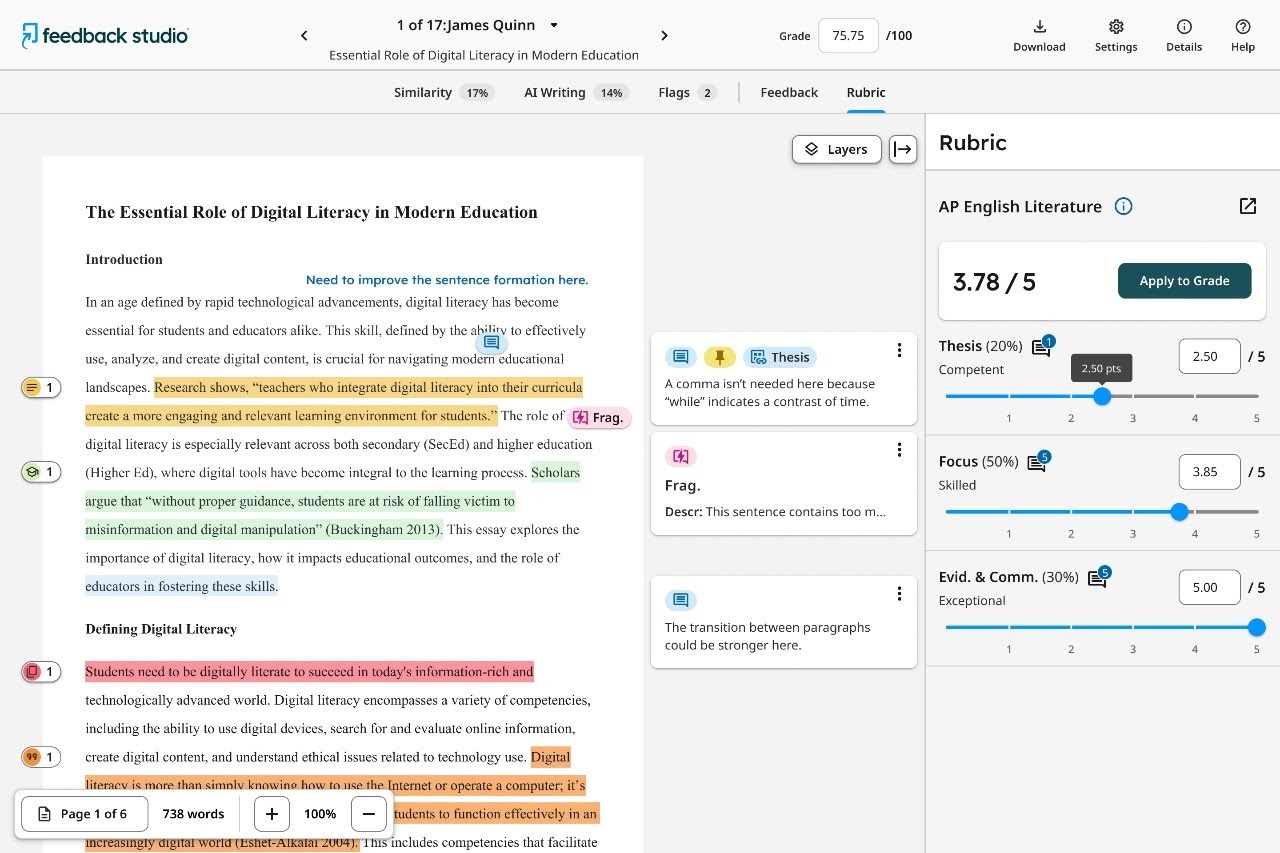
Turnitin Feedback Studio page open to the Rubric panel to select and grade with a rubric.

Turnitin Feedback Studio page open to the Rubric panel to select and grade with a rubric.

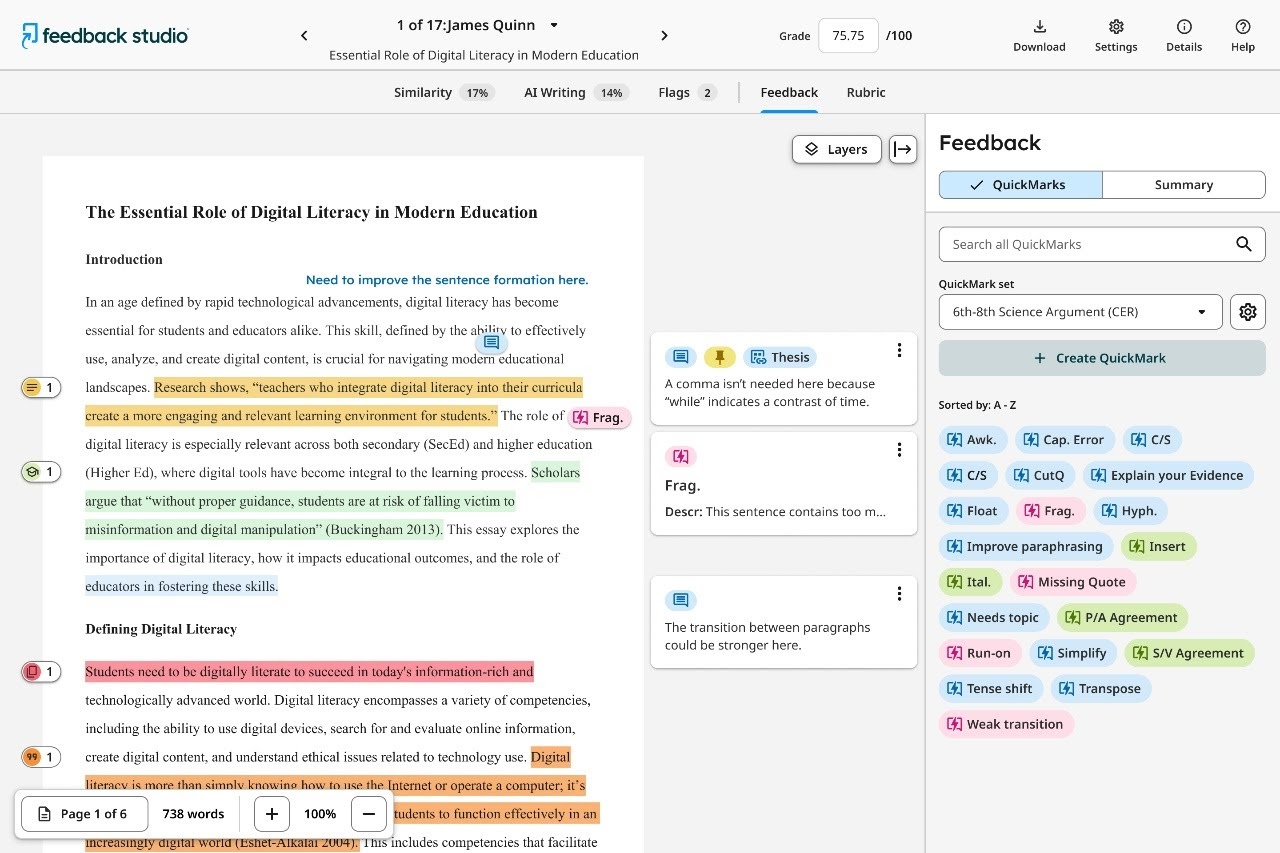
Turnitin Feedback Studio displaying highlighted text in the student paper and the QuickMarks panel on the right with thesis, fragment, and paragraph transition comments.

Screenshot of Turnitin Feedback Studio displaying highlighted text in the student paper and the QuickMarks panel on the right with thesis, fragment, and paragraph transition comments.

Support

Need to report technical issues or reuqest support with Turnitin? Contact the Learning Platforms Helpdesk at contact us.

Top