
YuJa Panorama

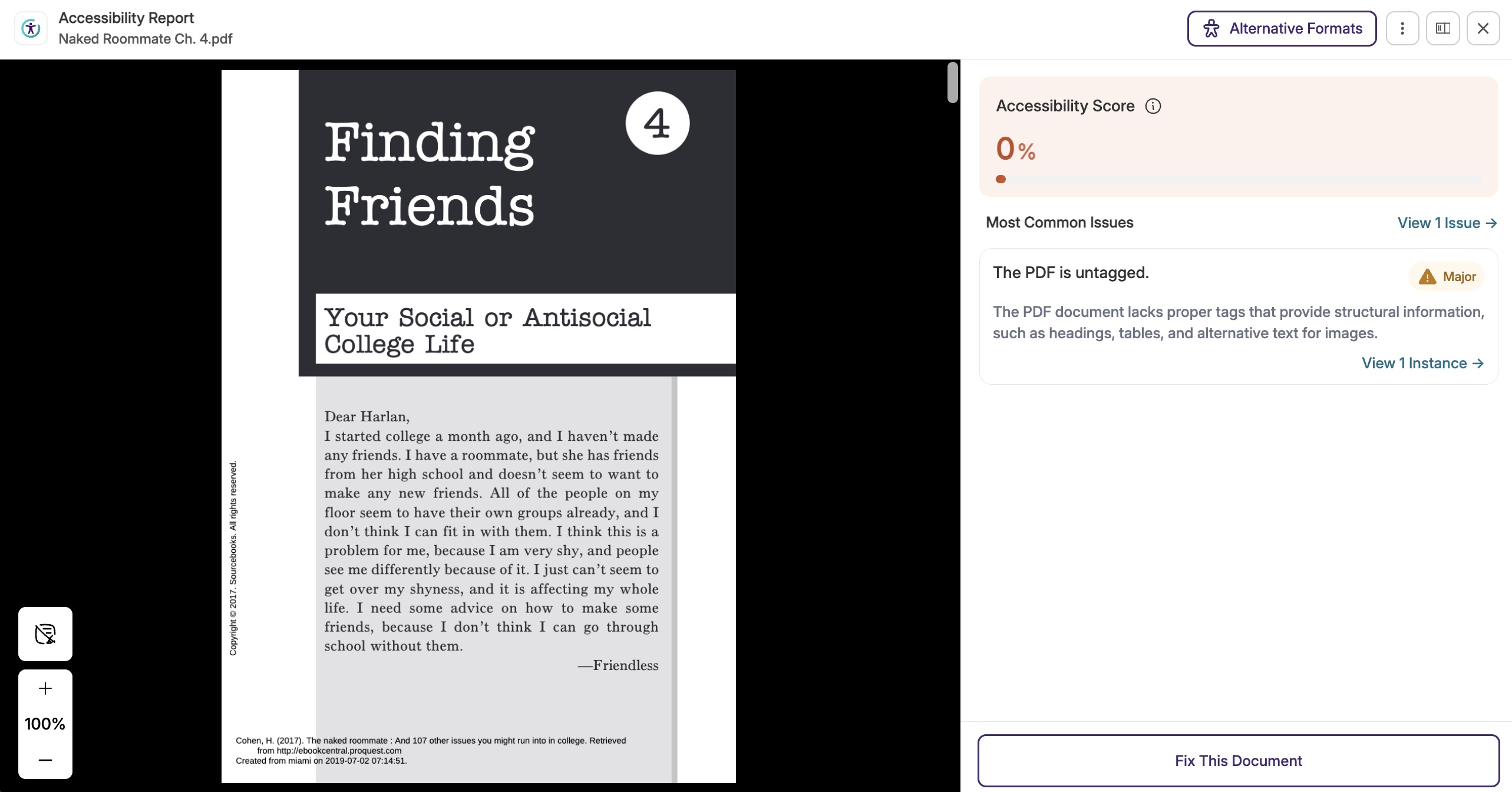
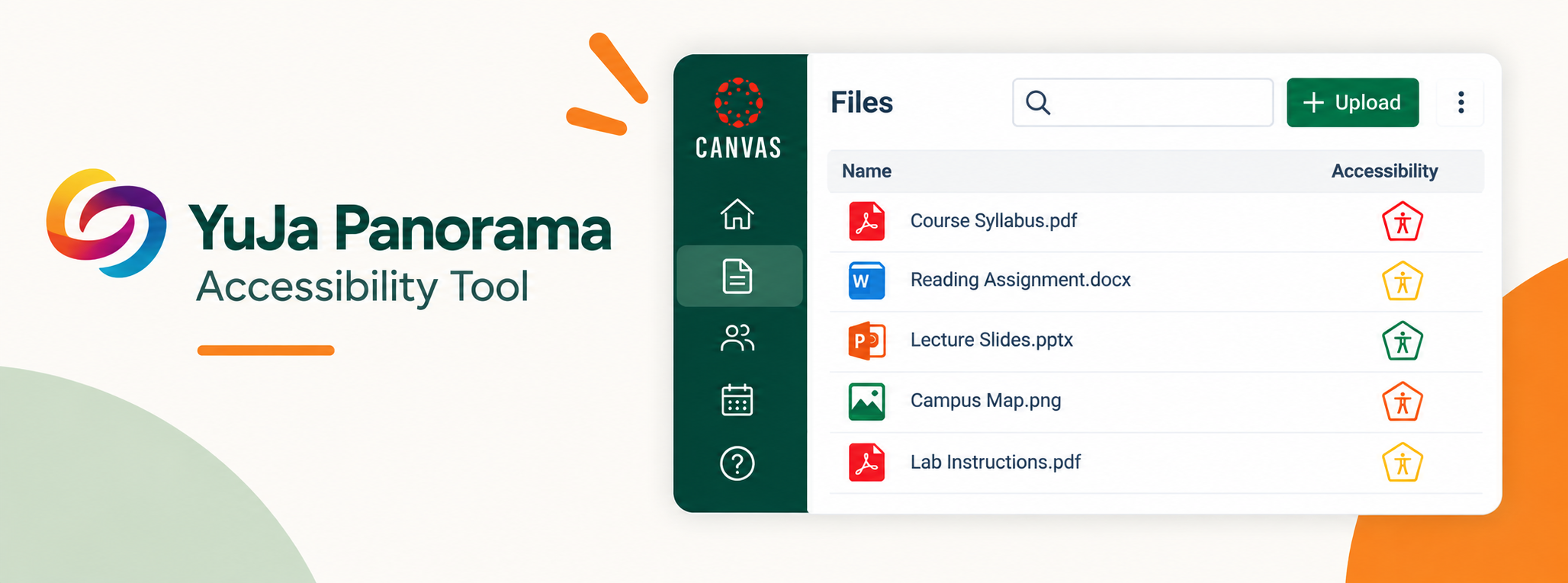
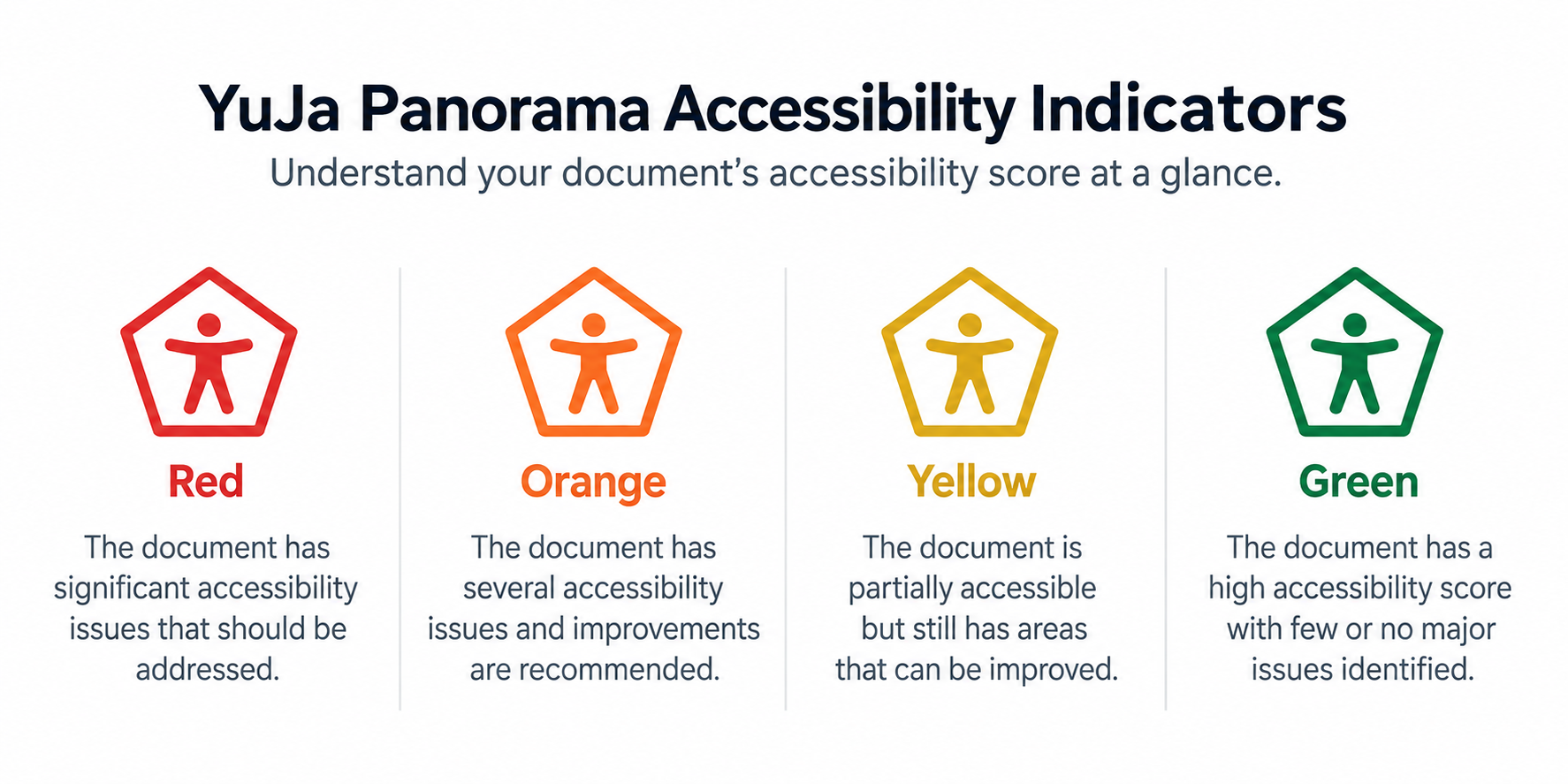
YuJa Panorama accessibility score indicators range from red for significant accessibility issues to orange, yellow, and green as document accessibility improves

YuJa Panorama is a digital accessibility platform integrated with Canvas that helps faculty create more accessible course content and provides students with additional ways to access learning materials.

Panorama automatically evaluates course files for accessibility, identifies potential barriers, provides guidance for fixing issues without having to leave the Canvas environment.

Overview

At a Glance

YuJa Panorama provides accessibility tools for both instructors and students directly within Canvas.

For Faculty: Panorama scans course documents and provides an Accessibility Score that helps instructors identify & remediate accessibility issues within files. 

For Students: Panorama provides Alternative Formats, allowing students to access course documents and meeting diverse accessibility needs.
Student Tipsheet

Training & FAQs

Guides, instructional resources, and video tutorials are available for faculty and students learning to use Panorama.

Faculty can learn how to interpret Accessibility Scores, review Accessibility Reports, remediate documents, and more.

Students can learn how to access Alternative Formats and use Panorama's accessibility tools.

Help Center Video Tutorials

Access Yuja Panorama

YuJa Panorama is integrated directly into Canvas.

To access Panorama, log in to Canvas and navigate to your course.

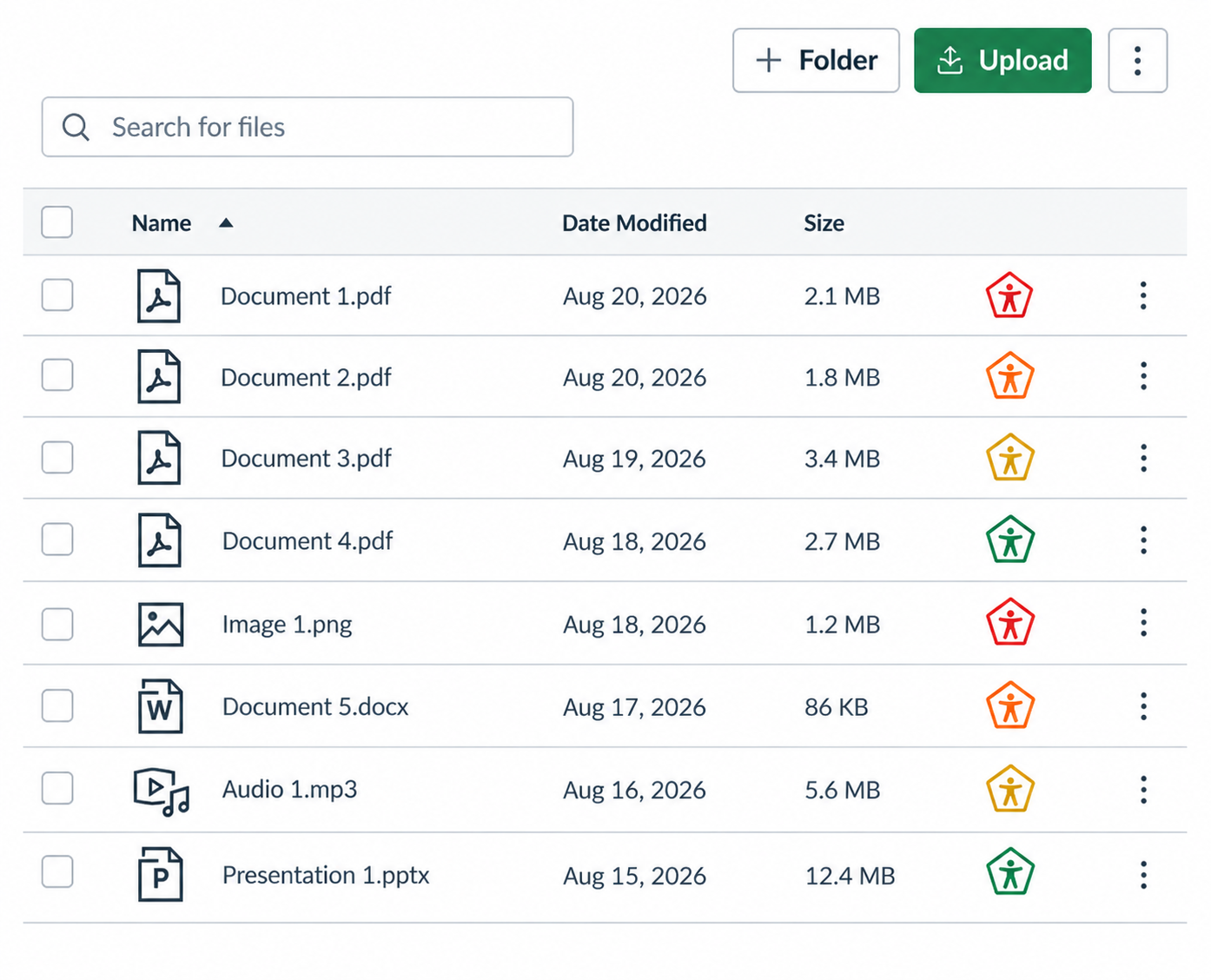
For Faculty: Select the Accessibility icon next to a document to open its Accessibility Report.

For Students: Select the Alternative Formats icon next to supported course content to view alternative formats.

LOGIN TO CANVAS

Getting Started

Canvas allows instructors to use YuJa Panorama directly within their courses to identify and improve the accessibility of course content. Faculty can review accessibility scores, identify potential barriers, and receive guidance for improving their materials, while students can access alternative formats that best support their learning needs.

Accordion Group

Open All Tabs
  • 1. Viewing an Accessibility Score

    Panorama displays an accessibility indicator next to supported files in Canvas. Instructors can use these indicators to quickly identify documents that may contain accessibility barriers.


  • 2. Understanding the Report

    Select the Accessibility icon next to a file to open its report. The report provides an overall Accessibility Score and identifies specific issues that may need attention. The score is color-coded to help instructors quickly understand the accessibility of their document:


    • Red: The document has significant accessibility issues that should be addressed.
    • Orange: The document has several accessibility issues and improvements are recommended.
    • Yellow: The document is partially accessible but still has areas that can be improved.
    • Green: The document has a high accessibility score with few or no major issues identified.

    The report also identifies individual accessibility issues and provides guidance for correcting them, helping instructors improve the document’s overall accessibility.

  • 3. Remediating Accessibility Issues

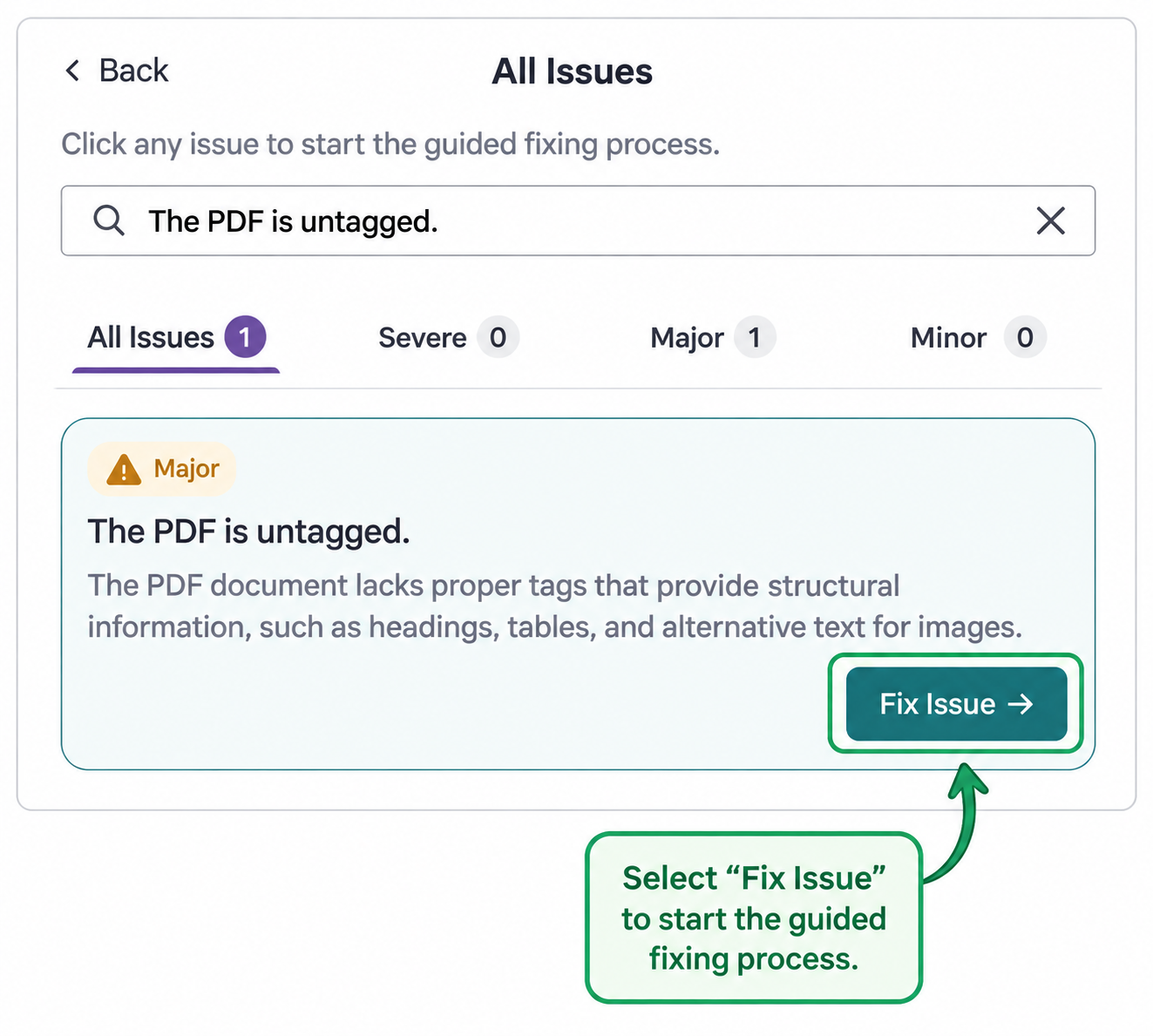
    Panorama provides recommendations to help instructors address accessibility issues identified within their course materials. To review and apply recommendations:

    1. Select the Accessibility icon next to the file you would like to review.


    2. Open the Accessibility Report to view the issues Panorama has identified.

    3. Review the recommendations provided for each accessibility issue.

    4. Select an issue to view additional information and recommended fixes.

    5. Choose the appropriate recommendation and follow the provided steps to remediate the issue.

    6. Review the updated Accessibility Score to see how the changes improved the accessibility of the document.

Common Issues Panorama Can Remediate

Open All Tabs
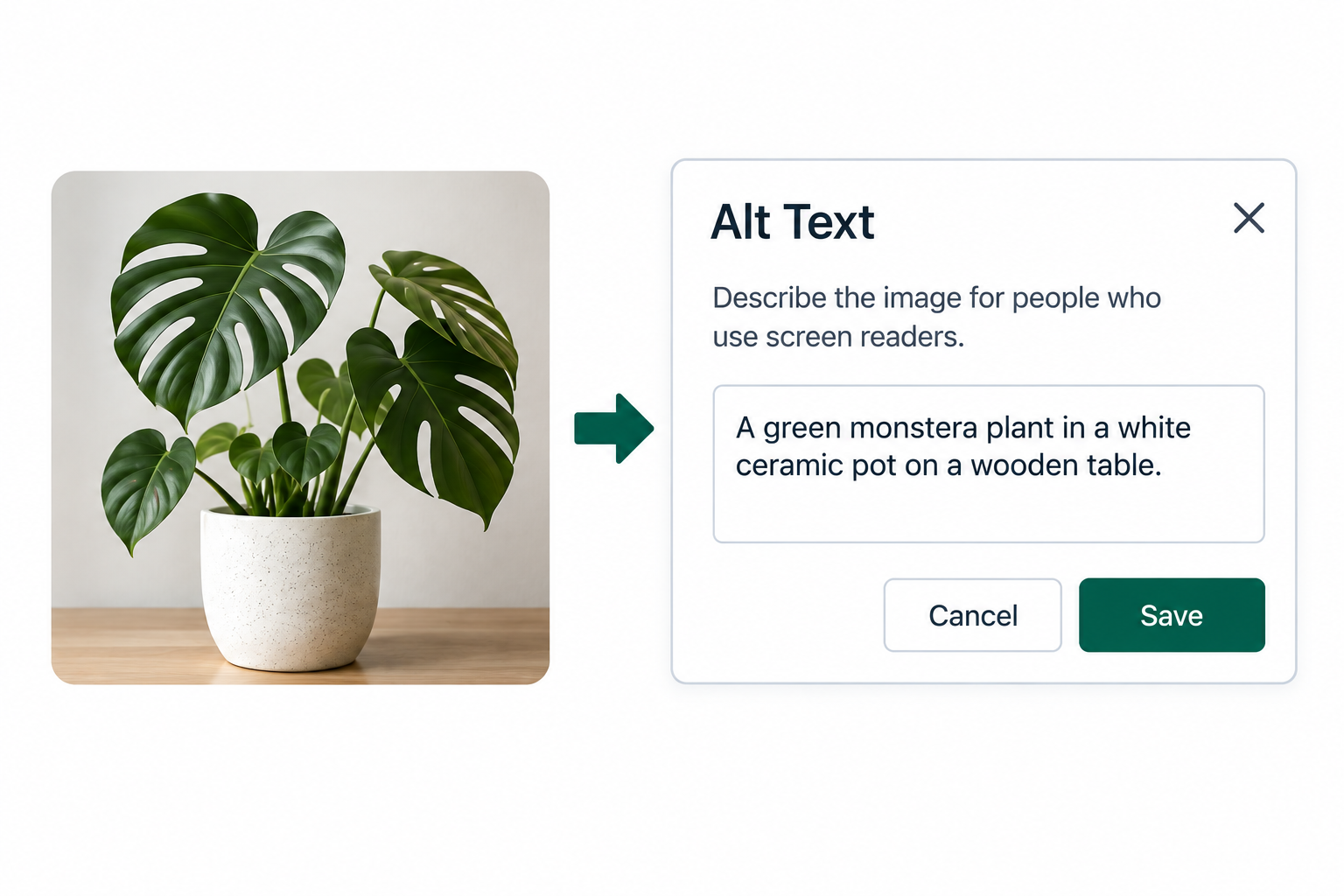
  • Alternative Text

    Identify images that are missing alternative text and add meaningful descriptions for users of assistive technology.

    Example of alternative text using a plant and how to leverage that format

  • Document Structure

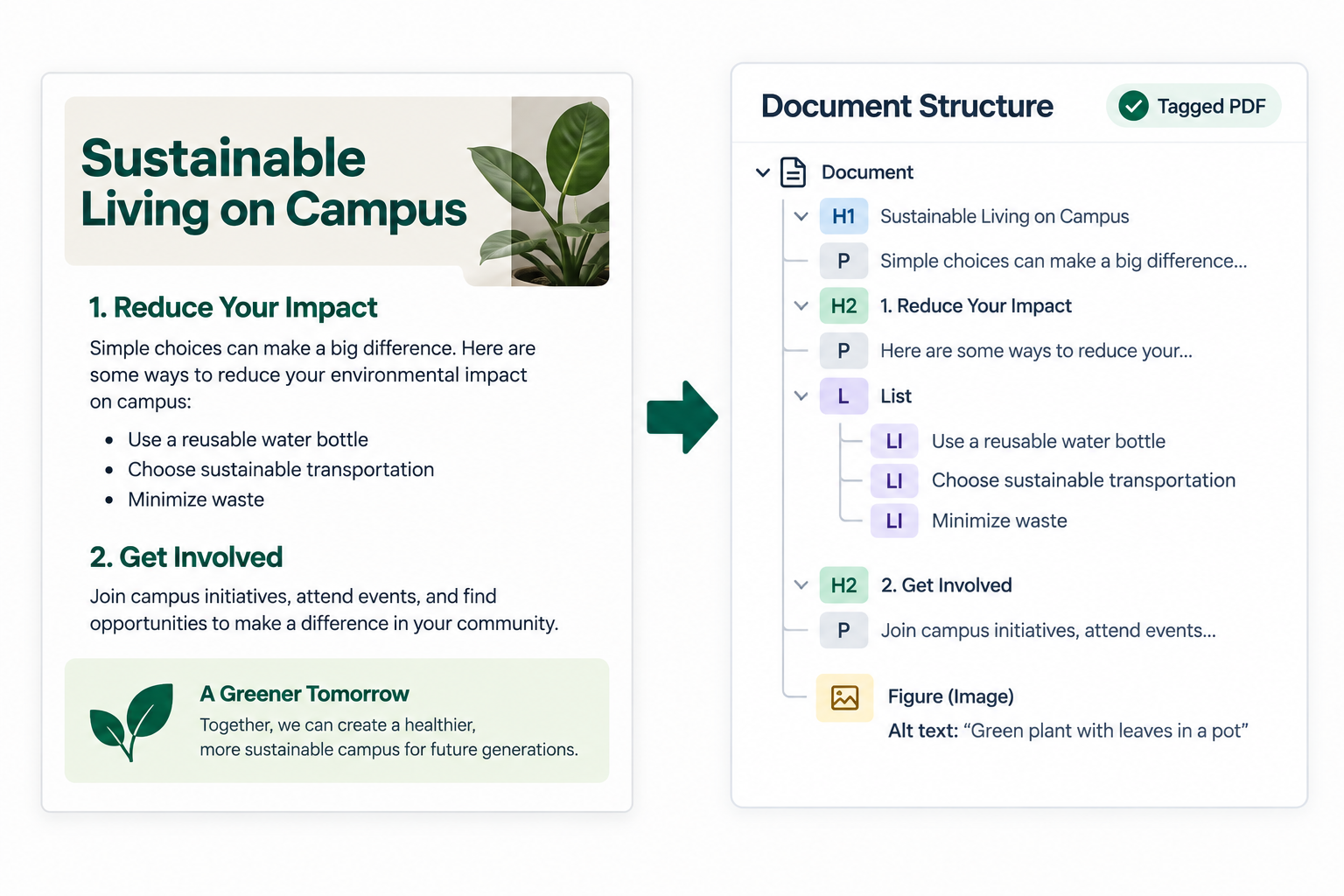
    Identify issues with headings, lists, tables, and other structural elements that affect how assistive technologies navigate a document.

    Example document alongside its tagged structure, showing how headings, paragraphs, lists, and images are identified to create a logical structure for assistive technologies

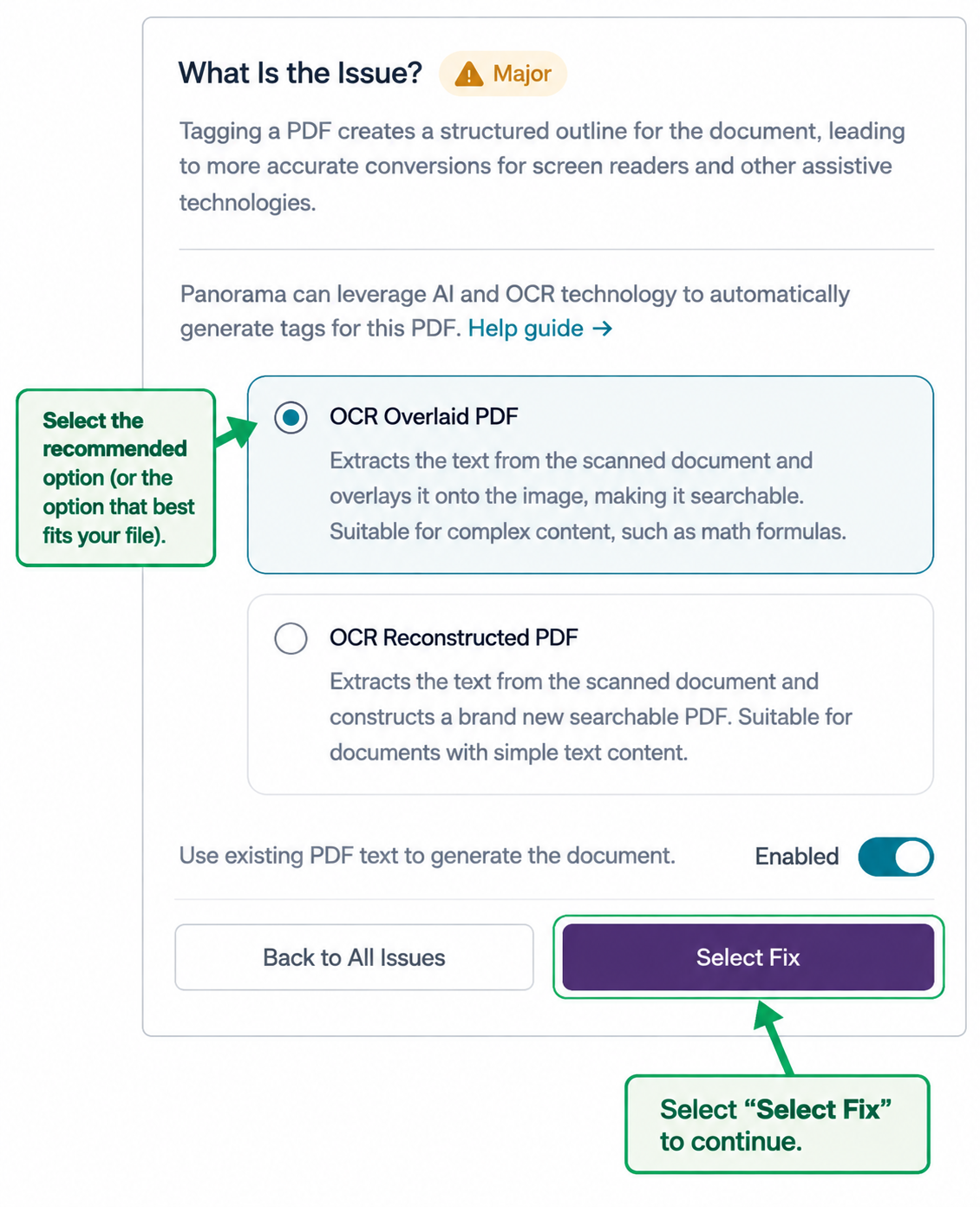
  • PDF Accessibility

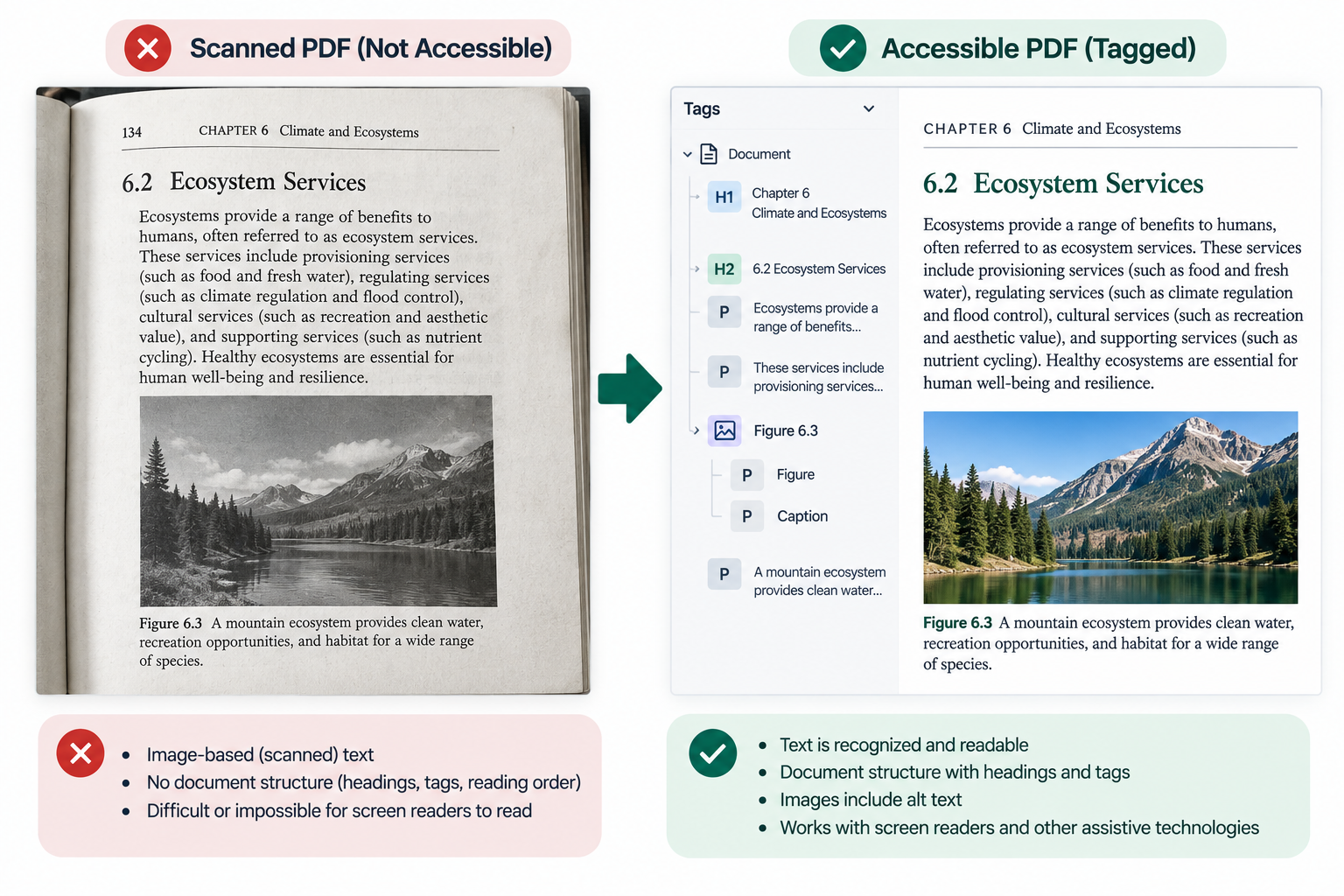
    Identify accessibility barriers within PDF files (incluiding scanned files) and use Panorama's remediation recommendations to improve the document.

    Comparison of a scanned textbook page and an accessible tagged PDF. The accessible version contains recognized text, heading structure, reading order, and image information for assistive technologies.

  • Color and Contrast

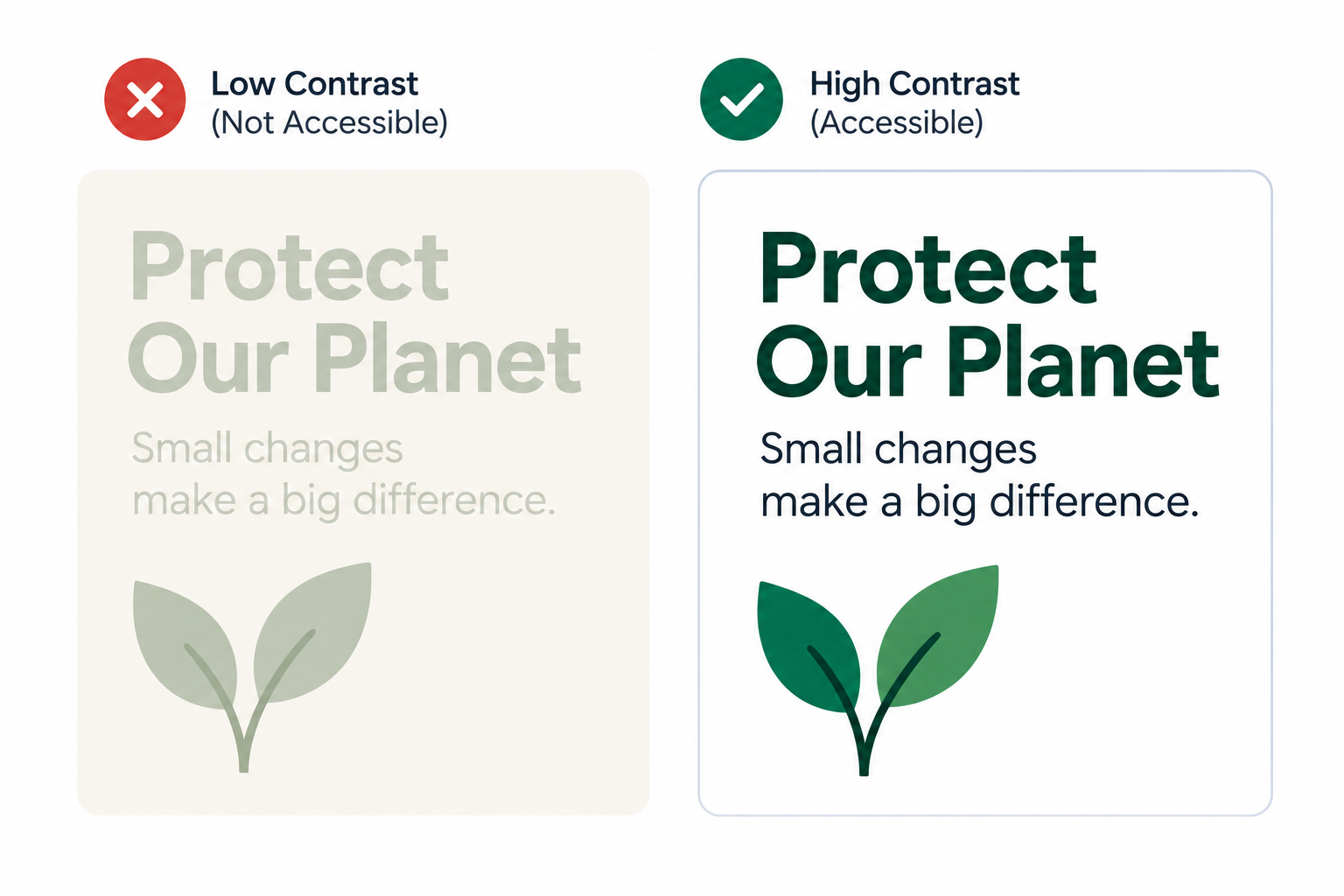
    Identify readability and color contrast concerns that may make content difficult for some users to access.

    “Comparison demonstrating low and high color contrast. Pale text on a light background is difficult to distinguish, while dark text on a light background is clearly readable.”

Training

Support

For additional assistance with YuJa Panorama:

  • Contact the Learning Platforms Helpdesk at contact us.
  • YuJa Help Center
    • Use the Panorama Help Center to search documentation, tutorials, FAQs, and troubleshooting resources.
    • YuJa Help Center

Top