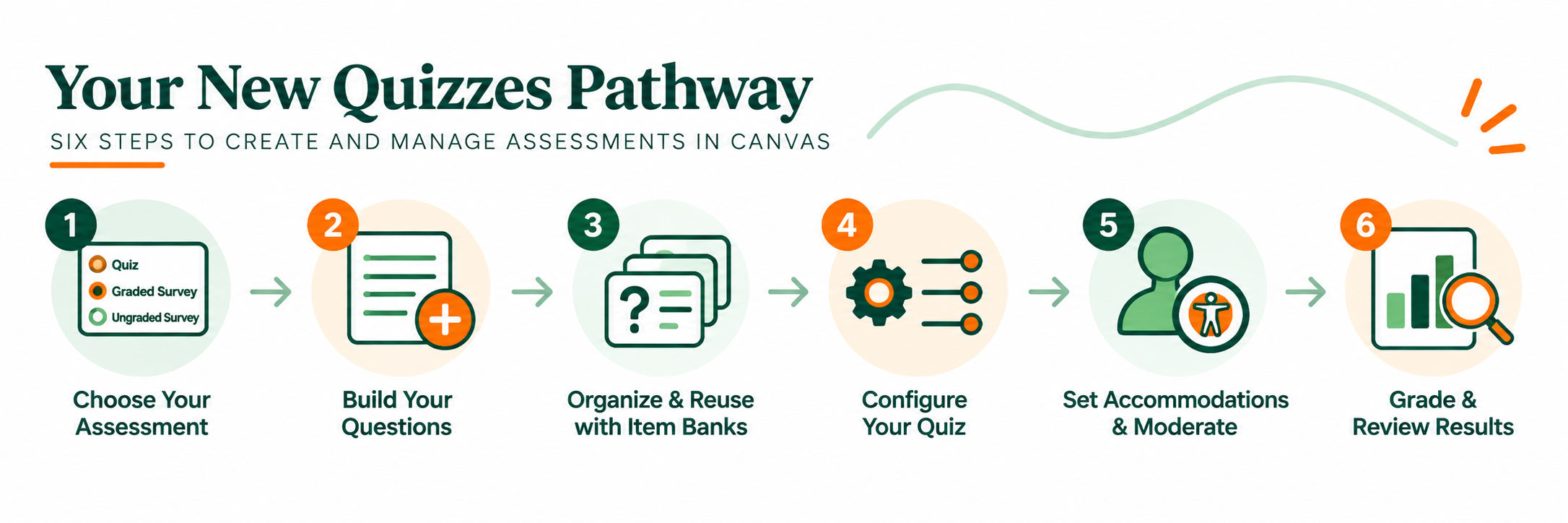
Creating an assessment in Canvas involves more than adding questions. Your assessment type, question types, Item Banks, quiz settings, accommodations, and grading options work together to shape how students take an assessment and how their responses are evaluated.
Quicklinks: Quizzes Are More Than Just Quizzes | Six Steps to Build & Manage Assessments |Know Where to Go | Use Reports to Inform Your Teaching | Common Scenarios | Need Help?
Whether you're creating a quick check for understanding or a larger exam, New Quizzes gives you the tools to build, configure, and manage your assessment.
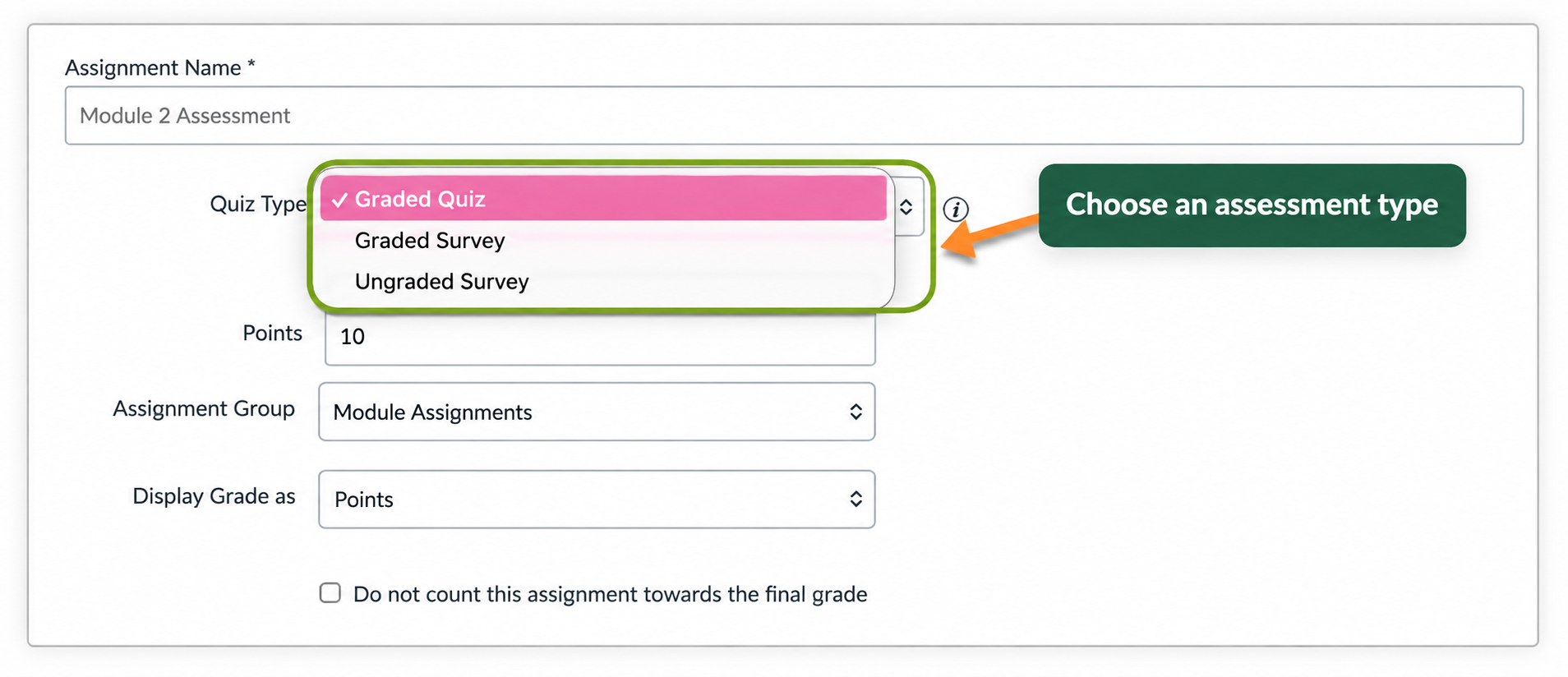
Before you begin building, decide whether you need a Quiz or a Survey. This choice determines which features are available later. Quiz: Choose a Quiz when students are being assessed on right or wrong answers. Use a Quiz when you want to: Graded or Ungraded Survey: Choose a Survey when you want to collect responses without identifying answers as correct or incorrect. A Graded Survey awards points for participation. An Ungraded Survey collects responses without contributing points toward the course grade.
Surveys and Quizzes are different assessment types. If you choose a Graded or Ungraded Survey, you will not have the same right/wrong answer functionality available in a Quiz.
If you need correct answers, automatic scoring, Item Banks, or randomized question pools, start with a Quiz.
New Quizzes includes several question types for different assessment needs. Choose the question type that best matches what you want students to demonstrate and how you want their responses evaluated. Choose a Question Type Question types support different ways for students to select, enter, organize, and apply their responses. Consider How Questions Will Be Graded Most New Quizzes question types can be automatically graded when you identify the correct answer while building the question.Select & Identify
Enter a Response
Organize & Apply
Essay and File Upload questions require manual grading in SpeedGrader. You can combine automatically graded and manually graded questions within the same quiz.
Item Banks let you organize questions into reusable collections. Questions stored in an Item Bank can be used across assessments, shared with others, and used to create randomized question sets. Organize Your Questions Item Banks can help you build a reusable collection of questions rather than recreating questions for each assessment. Consider organizing banks by:
Open your New Quiz and select Build. From the Build page, select Item Banks to find an existing bank or create a new one.
Name Item Banks so you can easily identify their contents later. Instead of naming a bank Quiz 1 Questions, consider a name that describes the course, unit, and topic.
Example: BIO 101 | Unit 1 | Cell Structure
Randomize Questions: Item Banks can also be used to create randomized question sets. Instead of giving every student the same questions, Canvas can randomly select a specified number of questions from an Item Bank. For example, if an Item Bank contains 30 questions, you could configure the quiz to randomly select 10 questions for each student.
Reuse & Share: Item Banks can be reused across New Quizzes and shared with other instructors when collaboration is needed. This can be useful for coordinated courses, shared assessments, or departmental question collections.
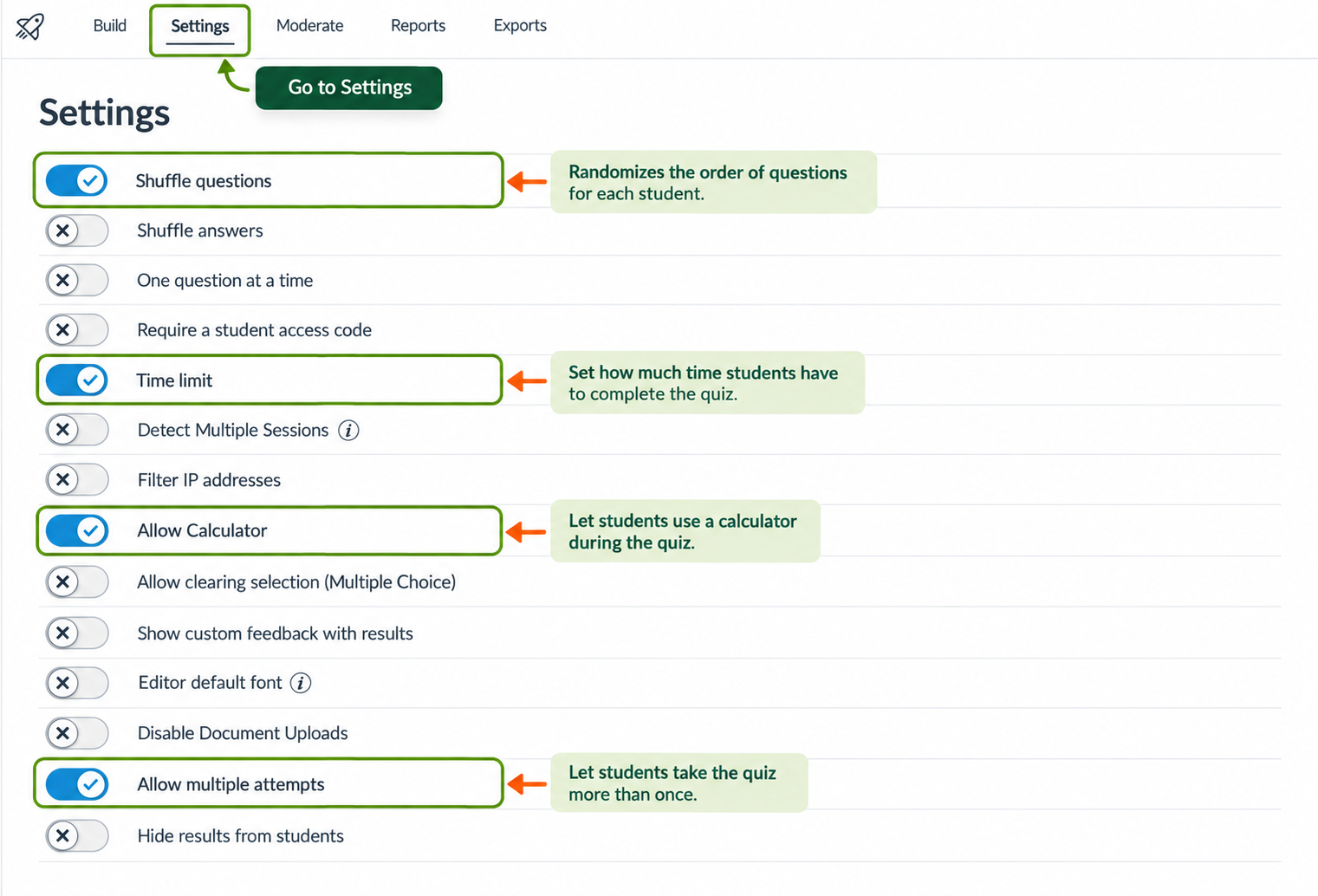
Quiz settings control how students take an assessment, how many attempts they receive, and what information they can see after submitting. Review these settings before publishing your quiz. Control the Quiz Experience Use quiz settings to determine how students move through and interact with the assessment. Watch How to Manage Quiz Settings Manage Multiple Attempts If students are allowed more than one attempt, you can control how those attempts work and which score Canvas keeps. Depending on your settings, Canvas can use the highest, average, latest, or first score from multiple attempts.
Open your New Quiz, select Build, and then select Settings.
A quiz time limit does not override the quiz availability window. If the Until date and time is reached while a student is taking the quiz, the attempt may be submitted even if the student's allotted time has not expired.
New Quizzes settings control what students can see about their quiz results. Your Gradebook posting policy separately controls when students can see their grade.
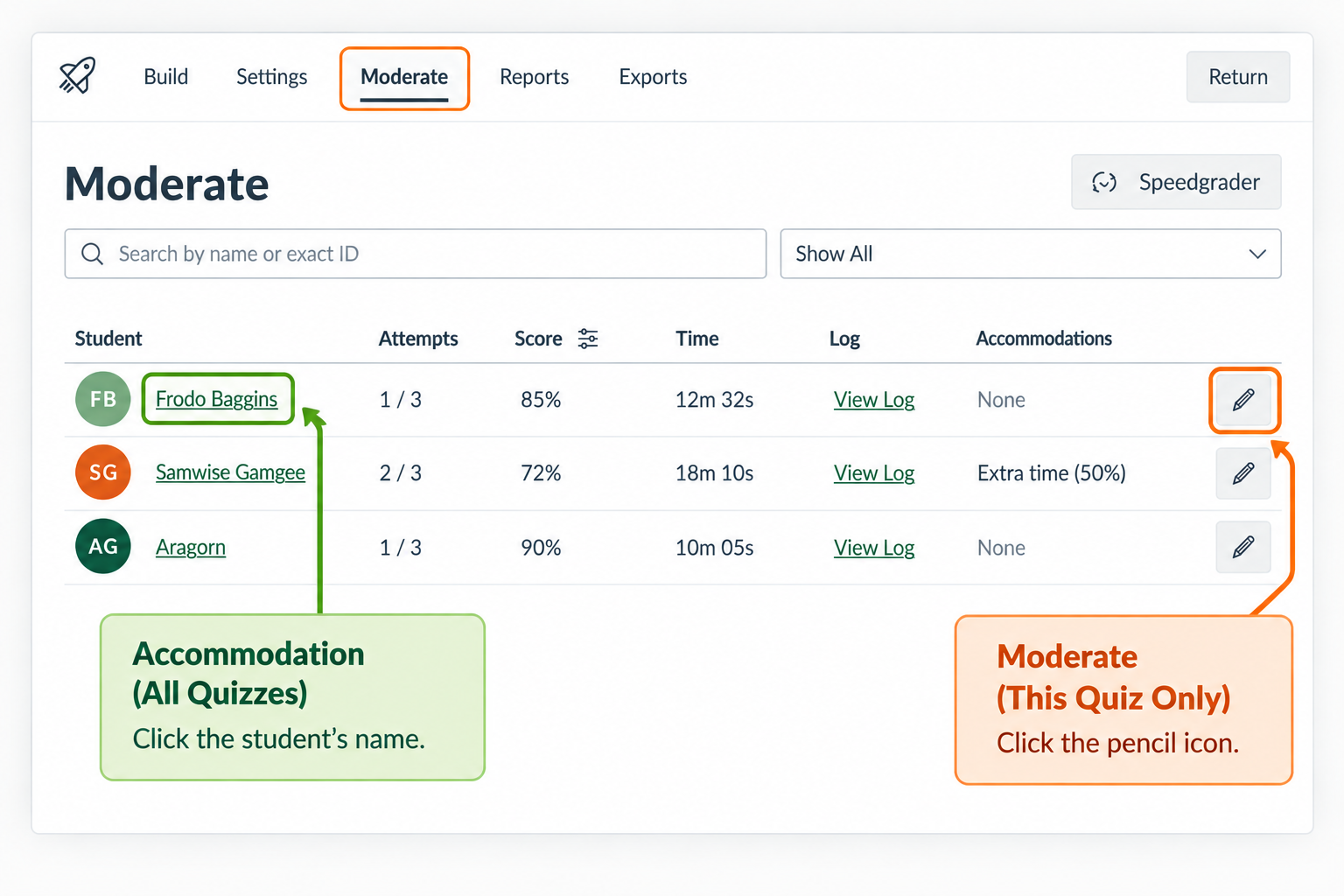
New Quizzes provides options for supporting individual student needs. Use Accommodations for adjustments that should apply across New Quizzes in the course, and use Moderate when you need to make an adjustment for a specific quiz or attempt. Set an Accommodation Accommodations are useful when a student needs the same adjustment across New Quizzes in your course. Depending on the accommodation, you can adjust settings such as: For example, a student who receives time-and-a-half on assessments can be assigned a 1.5× time-limit multiplier. Moderate an Individual Quiz Use quiz-specific moderation when a student needs an adjustment for a particular assessment or attempt. You can use Moderate to: Learn About Moderating Assessments
Open your New Quiz, select Build, and then select Moderate. From the Moderate page, you can review students and manage accommodations or quiz-specific adjustments.
Accommodations and moderation do not necessarily change when a quiz is available. Review the quiz's availability dates to make sure the student can access the assessment when needed.
After students complete a New Quiz, Canvas provides several ways to review responses, grade questions, and examine quiz results. Where you go depends on what you need to do. Grade in SpeedGrader New Quizzes can include both automatically graded and manually graded questions. Use SpeedGrader to review student submissions and grade questions that require instructor evaluation. In SpeedGrader, you can: Learn how to Grade a Quiz in Speedgrader Review Attempts with Moderate The Moderate page provides an overview of student quiz activity and attempts. Use it when you need to review an individual student's assessment or make an adjustment after an attempt. Review Quiz Performance New Quizzes reports can help you look beyond an individual student's submission and review how the assessment performed overall. Use reports to examine quiz and question performance, identify patterns in student responses, and consider whether particular questions may need additional review.
Use SpeedGrader to grade and provide feedback, Moderate to review individual attempts and make student-specific adjustments, and Reports to examine quiz and question performance.
A quiz may appear to have a score even when it contains questions that still require manual grading. Review submissions with Essay or File Upload questions before considering the assessment fully graded.
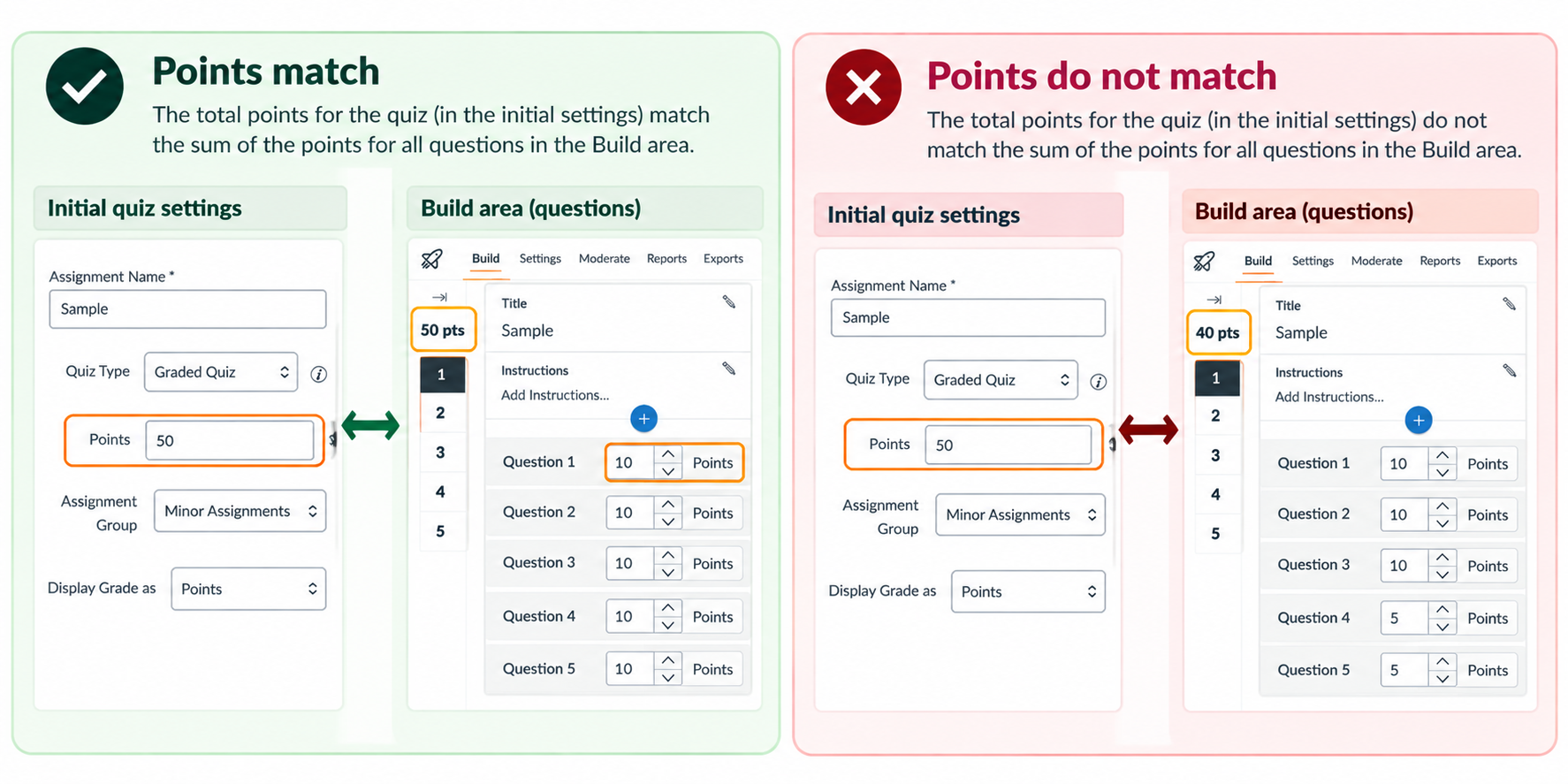
In New Quizzes, the total points for the quiz in Canvas must match the total points assigned to questions inside the Build area. For example, if your questions add up to 50 points, make sure the quiz is also set to 50 points. If these totals don’t align, the quiz score and the score shown in the Canvas Gradebook may appear inconsistent. Before publishing: Add up your question points in Build, then confirm the quiz’s overall point value matches.
New Quizzes reports can help you look beyond scores and use assessment results to inform your teaching, support individual students, and reflect on progress toward your learning goals.
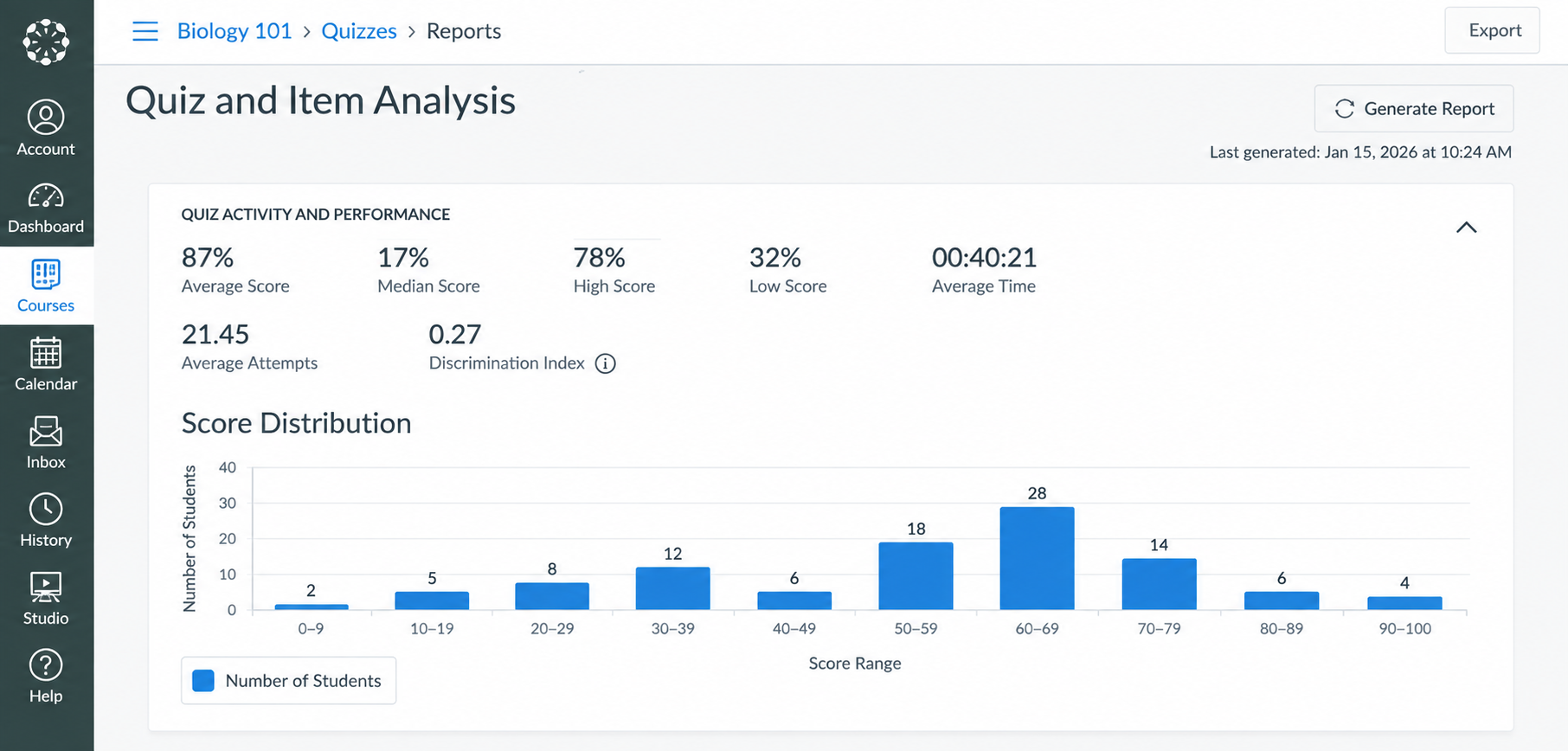
What patterns are emerging in student responses? Use Quiz & Item Analysis to identify patterns in how students responded and consider what those patterns might mean for your teaching and assessment. Turn the Data into Action Remember: A surprising result is a reason to investigate—not automatically a reason to change the question. Use the report alongside your learning goals and knowledge of your students to decide what to do next. Consider asking students for feedback if needed. What you'll find in the report: Item Difficulty, Answer Frequency, Discrimination Index, and Corrected Item-Total Correlation. Try This: Export the Quiz and Item Analysis CSV and sort the Incorrect column to identify the questions students missed most frequently.
Look for Patterns
What might help this student move forward? Use Student Analysis to look more closely at an individual student's responses and identify where a conversation, additional practice, or other support may be helpful. Learn More About Student Analysis Reports Remember: Start a Conversation, Not a Conclusion Assessment data provides one view of a student's learning. Use response patterns to guide questions and conversations. What you'll find in the report: Student responses, points earned, number of correct and incorrect responses, and attempt status. Try This: Before meeting with a student about an assessment, review their Student Analysis report and identify one or two patterns you want to ask about. Use those patterns to frame the conversation around learning and next steps rather than the score alone.
Use the Report to Prepare for a Conversation
Are students demonstrating the learning I intended? Use Outcomes Analysis to connect assessment performance with the broader learning goals you've aligned to your quiz. Rather than focusing only on quiz scores, this report can help you consider whether students are demonstrating the knowledge and skills you intended. Look Across the Learning Remember: Outcomes Must Be Aligned Outcomes Analysis is most useful when Canvas Outcomes have been intentionally aligned with your assessment. If Outcomes have not been added or aligned, the report will not provide meaningful outcome-level data. What you'll find in the report: Outcome performance data connected to the Outcomes aligned with your New Quiz.

If your quiz is not working the way you expect, start by checking Build, Settings, and Moderate. Question setup, quiz settings, availability dates, attempts, and accommodations can all affect the student experience. For additional support, connect with the Learning Platforms team or Canvas Support: