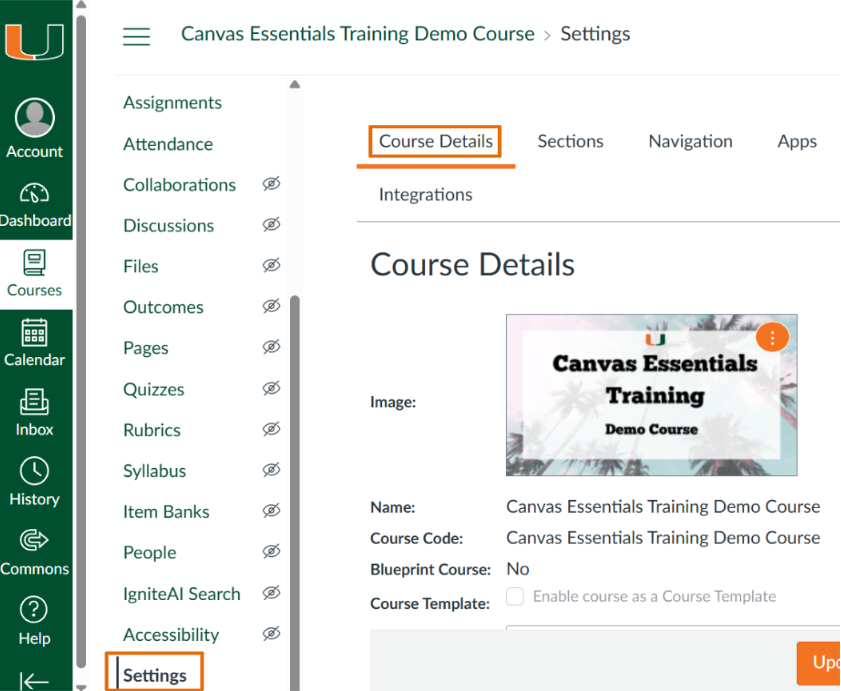
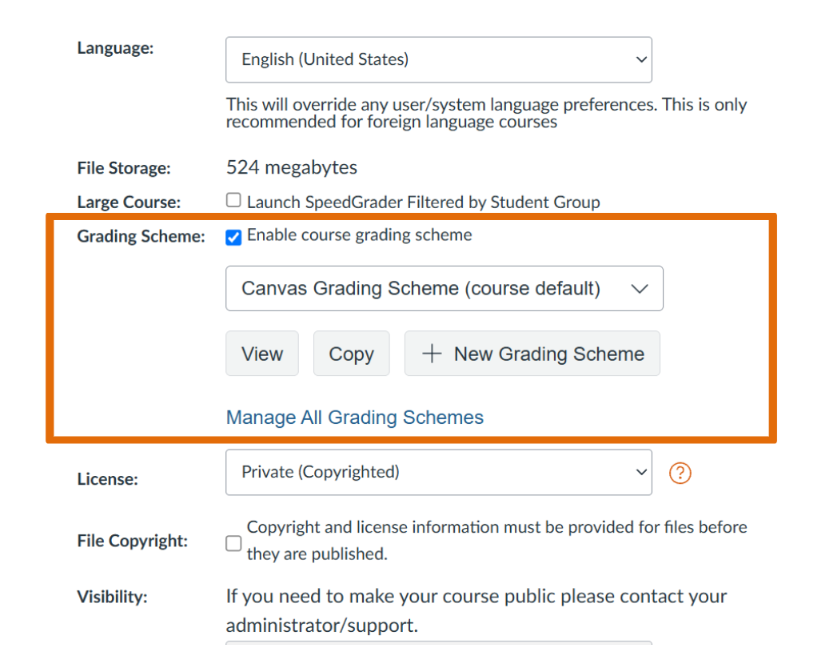
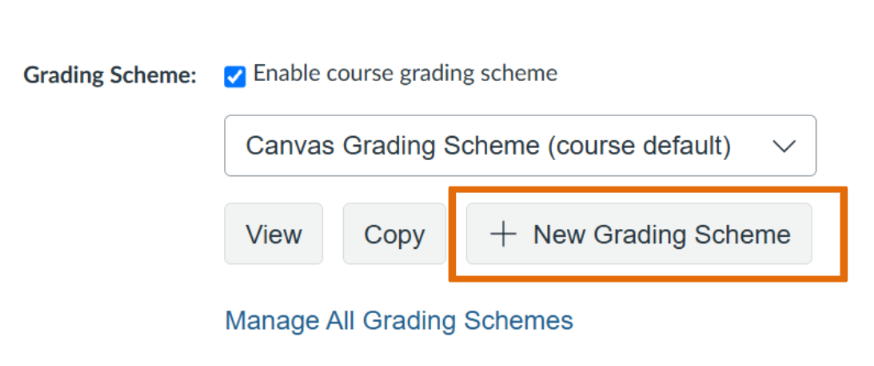
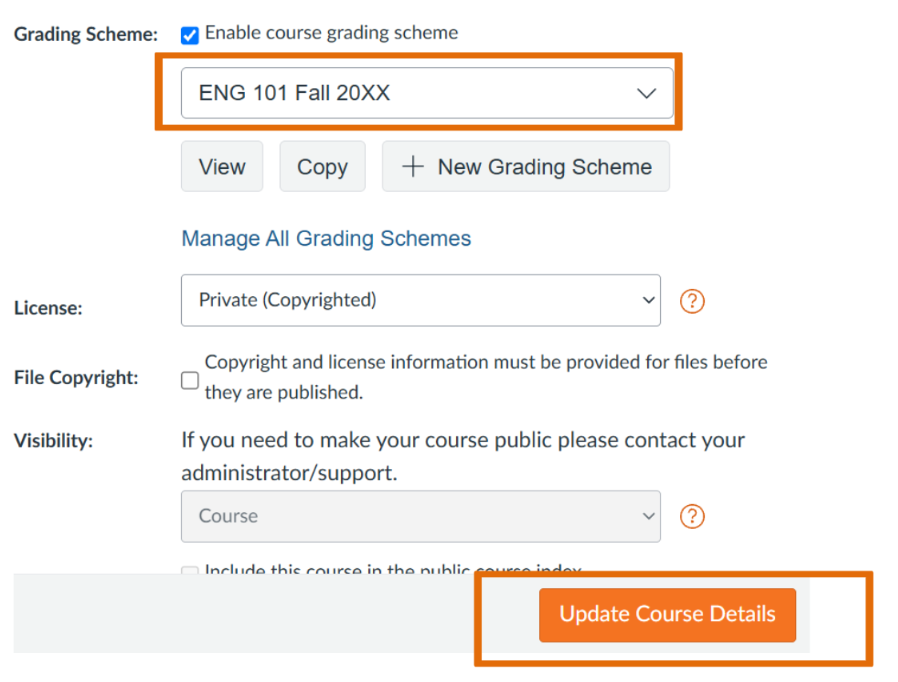
A grading scheme defines how a student’s numerical course grade translates into a letter grade or other rating. For example, you might define 90–100% as an A, 80–89.99% as a B, and so on.
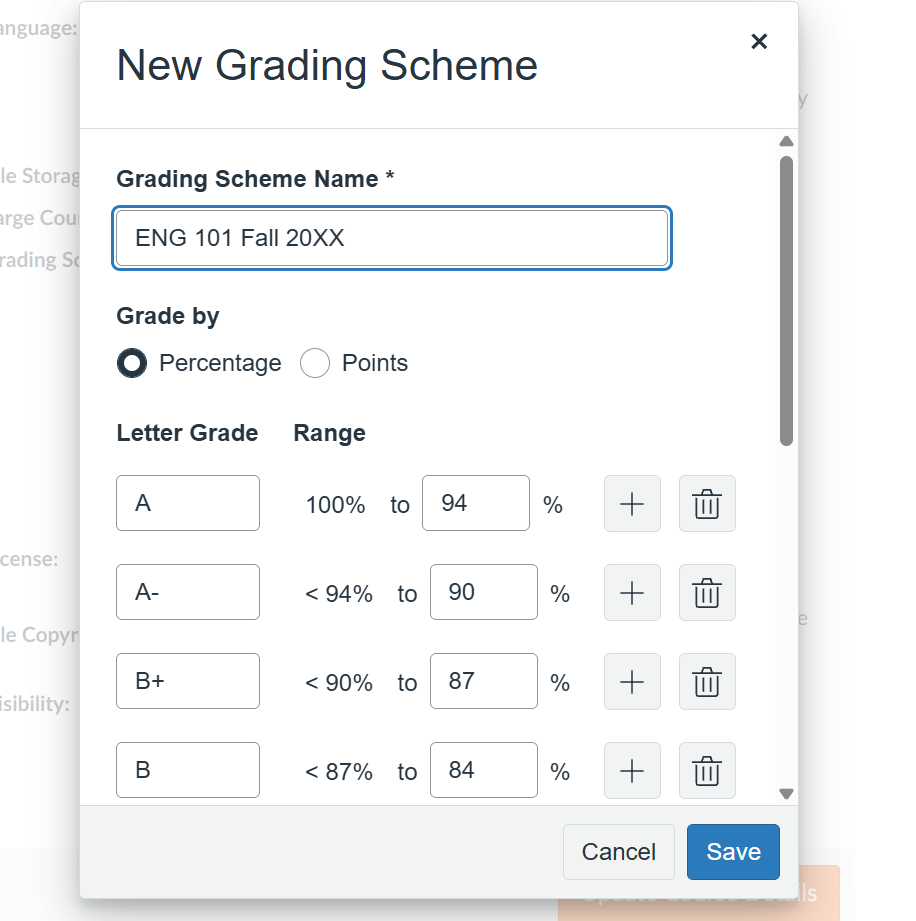
In Canvas, you can create a custom grading scheme to match the grading scale used in your course or in your syllabi. Canvas then uses these ranges to determine the letter grade associated with each student’s course grade.
University of Miami Grading Note: UM recognizes letter grades from A+ through F, but percentage ranges may vary by course, program, or school. Because Canvas’s default grading scheme may not match the scale in your syllabus, instructors should review and adjust the scheme as needed.


Tip: Before saving, compare the ranges in Canvas with the grading scale published in your syllabus to ensure they match.


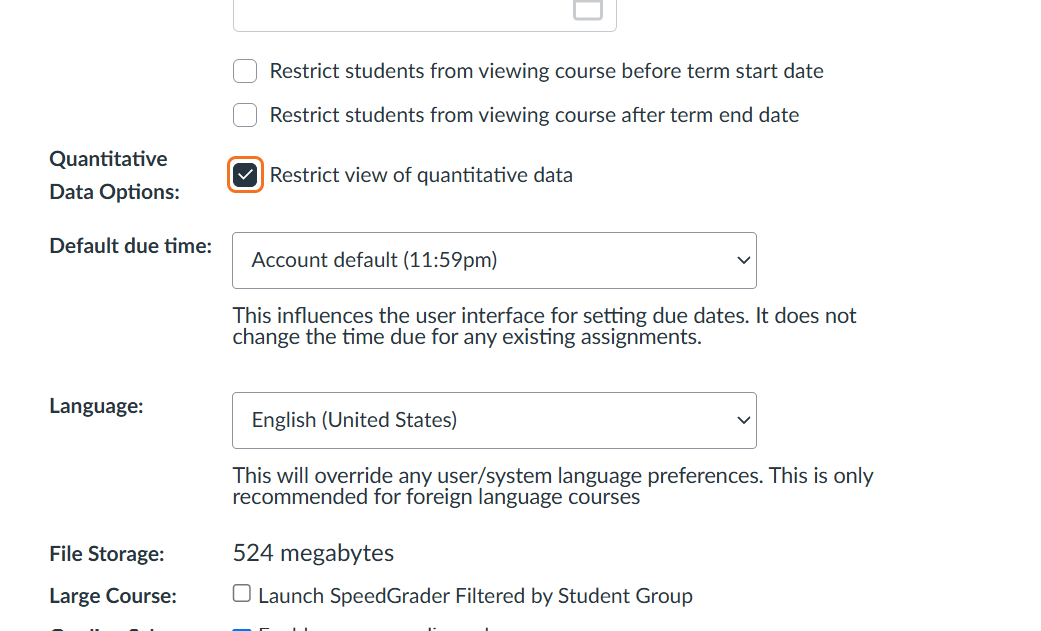
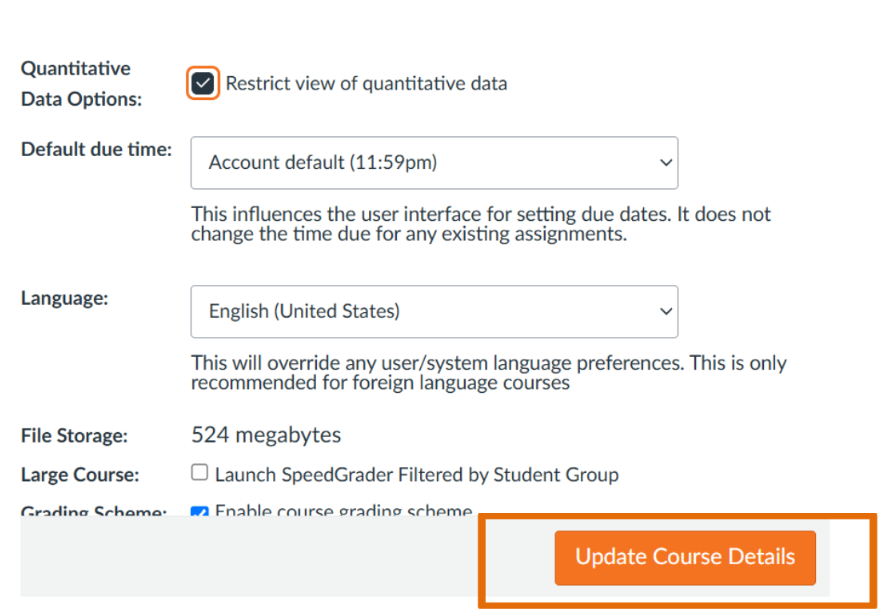
By default, students may see numerical grading information, such as points or percentages, along with the letter grades produced by a grading scheme. If you would like students to see letter grades and qualitative feedback without numerical points or percentages, Canvas provides a separate setting called Restrict view of quantitative data. Before you begin: Set and review your course grading scheme first. Canvas uses the grading scheme to determine which letter grade is displayed when numerical grading information is hidden.


Canvas's quantitative-data restriction is only partially supported for Classic Quizzes. Students may still encounter numerical scores when viewing result details.
For assistance configuring grading schemes or other Canvas Gradebook settings, contact the Learning Platforms Team at learningplatforms@miami.edu. For general technical assistance, contact the UMIT Service Desk at 305-284-6565 or help@miami.edu.