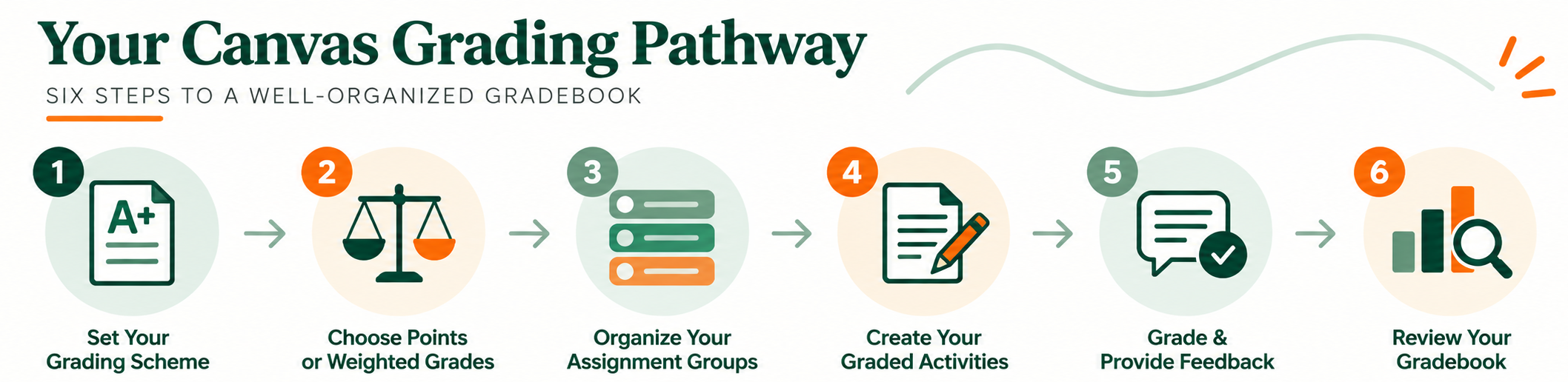
Setting up your grading structure in Canvas is an important first step in preparing your course. Your grading scheme, assignment groups, graded activities, and gradebook work together to determine how grades are calculated and displayed to students.
Quicklinks: New to Grading in Canvas | Decoding Your Canvas Gradebook | Grading Considerations & Common Scenarios | Need Help?
A grading scheme tells Canvas how your final course percentage translates into a letter grade, such as A, B+, or C. Review your grading scheme before the semester begins to make sure the ranges in Canvas align with the grading scale communicated in your syllabus. Where is this in Canvas? Course Navigation → Settings → Course Details → Grading Scheme Resource: Canvas Guide: How do I use grading schemes in a course?
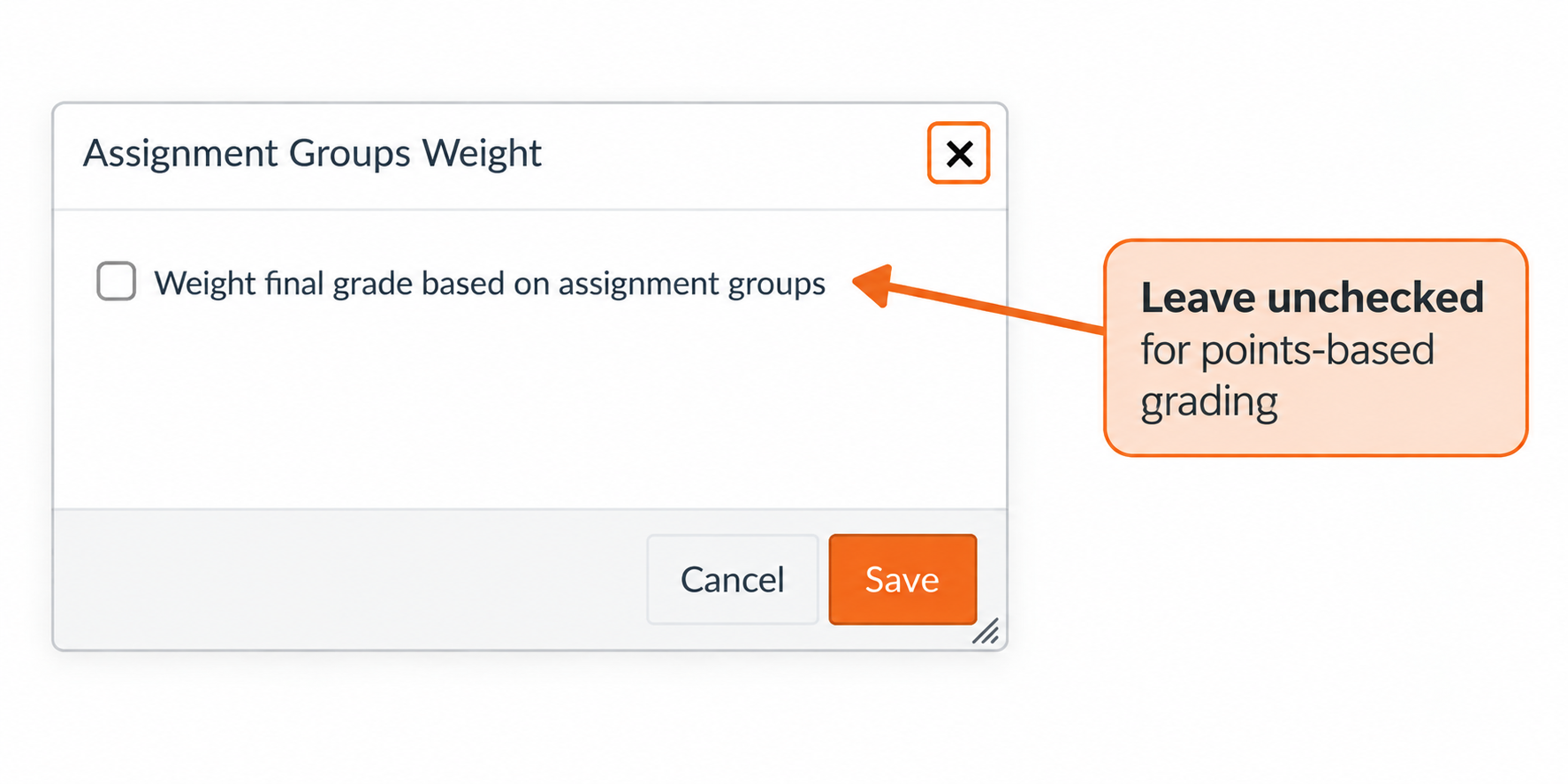
Next, make sure Canvas reflects how you calculate the final grade described in your syllabus. Points-Based Grading In a points-based course, assignments contribute to the final grade based on the number of points they are worth. For example, a 100-point exam has a greater impact on the final grade than a 10-point discussion. For a points-based course, consider the following setup: Weighted Grading If your syllabus specifies that categories of work contribute a certain percentage to the final grade, use weighted Assignment Groups. For example: Where is this in Canvas? For weighted grading, select the Options menu on the Assignments page and choose Assignment Groups Weight.

Course Navigation → Assignments → Assignment Groups Weights
Before heading to the Gradebook, start with Assignments. Assignment Groups organize your graded activities into categories such as Exams, Discussions, Homework, or Projects. If you're coming from Blackboard, Assignment Groups are similar to Categories. They are especially important if your syllabus assigns different weights to different types of work.You can also create rules in your assignment groups such as automatically dropping the lowest grades within that group. Where is this in Canvas? Resources
Course Navigation → Assignments
Now you're ready to add the individual activities students will complete. Create your assignments, quizzes, graded discussions, and other graded activities, then place each one in the appropriate Assignment Group. As you create each assignment, review the following details: Where is this in Canvas? Course Navigation → Assignments Good to know: To create an empty column in the gradebook, you need to create an Assignment with a "No Submission" or "On Paper" type. That will then create an empty column in grades. Resources
Once students begin submitting work, Grades and SpeedGrader become your primary grading spaces. The Gradebook provides an overview of student grades across the course. SpeedGrader allows you to open individual submissions, assign grades, use rubrics, annotate work, and provide feedback. Where is this in Canvas? Course Navigation → Grades From the Gradebook, select an assignment to access SpeedGrader. Resources
Review your Gradebook periodically throughout the semester and again before submitting final grades. Add filters and customize your view to make the gradebook easier to navigate. Where is this in Canvas? Course Navigation → Grades From the Gradebook, select an assignment to access SpeedGrader. Before finalizing grades, check that:
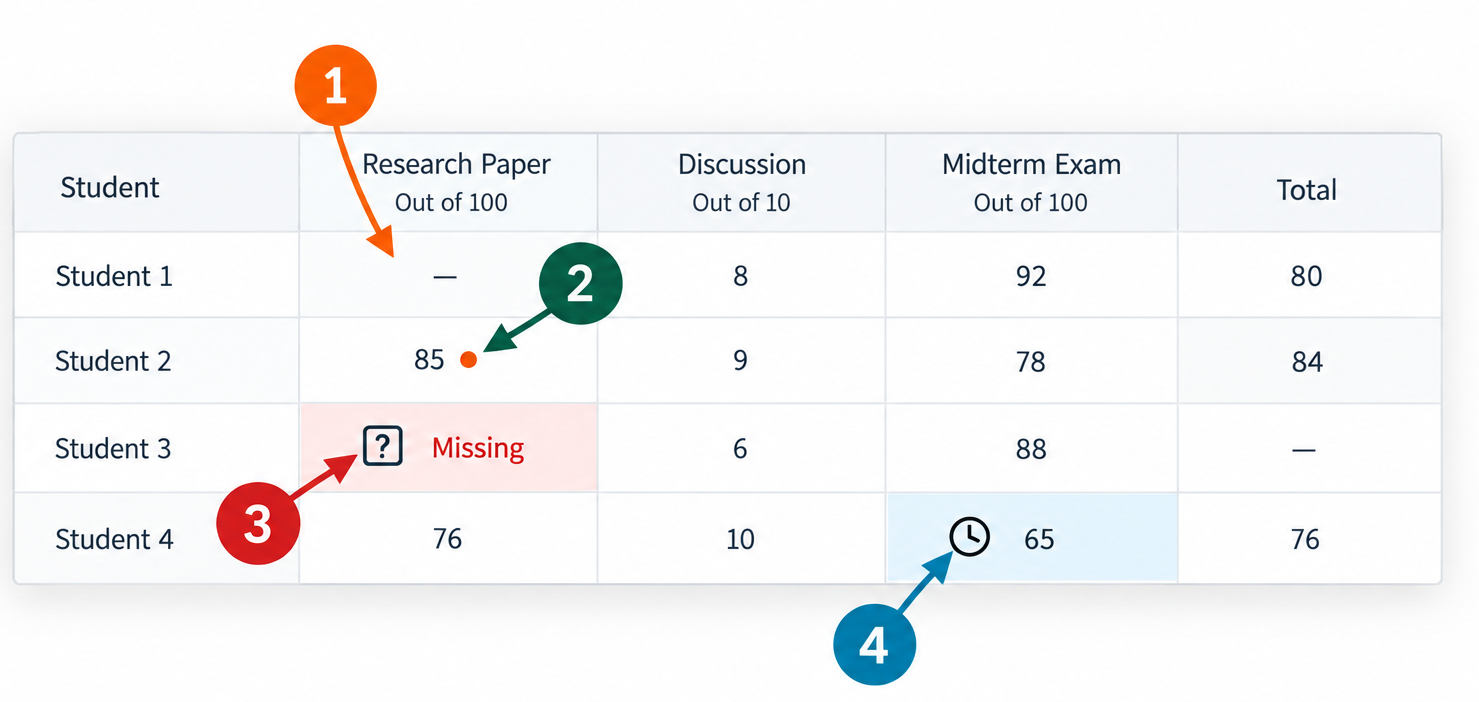
Once you begin grading, Canvas uses icons, colors, statuses, and symbols to communicate information about student submissions and grades. Understanding these indicators can help you quickly identify work that still needs attention, determine what students can see, and spot potential issues before final grades are submitted. 1. Dash (—) — No Grade Entered 2. Orange Dot — Grade Not Posted 3. Missing — Submission Missing 4. Clock — Late Submission
No grade has been entered for this student. A dash is not the same as a zero.
A grade has been entered, but it has not been posted and is not visible to the student.
Canvas has marked the assignment as missing based on the assignment and submission settings.
The student submitted the assignment after the due date. This does not necessarily mean a late penalty has been applied.
Not every grading decision is part of your initial course setup. As you begin grading, you may encounter situations that require additional settings or decisions in Canvas. Review the topics below to understand how Canvas handles common grading scenarios and how these choices may affect grade calculations, what students see, and how grades are communicated.
Extra credit works differently depending on how your course grades are structured. Before adding extra credit, determine whether your course uses points or weighted Assignment Groups. If Your Course Uses Points Use our Extra Credit Using Points Tip Sheet to review options for adding extra credit to a points-based course. If Your Course Uses Weighted Grades Weighted courses require a different approach to extra credit. Watch our walkthrough to review the available options and understand how they affect students' final grades.
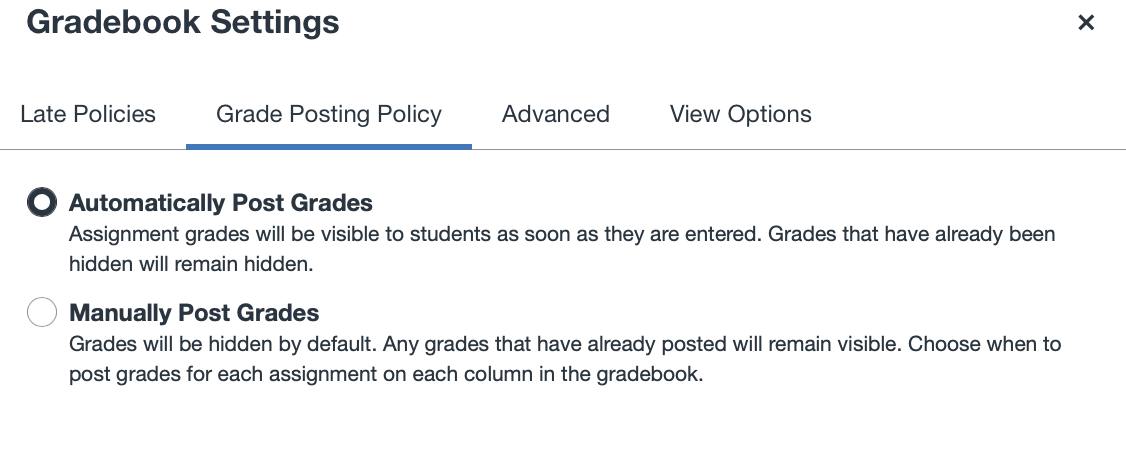
Canvas gives you control over when students can see grades and feedback. Your Grade Posting Policy determines whether grades are released to students automatically or manually. Student View: Grades Automatic vs. Manual Grade Posting With an automatic posting policy, grades become visible to students as you enter them. This is the default behavior in Canvas. This works well when you are comfortable with students seeing grades and feedback as grading progresses. With a manual posting policy, grades remain hidden from students until you choose to post them. This can be useful when you want to finish grading an assignment for the entire class before releasing grades and feedback. Important: Selecting a manual posting policy does not post grades later automatically. When you are ready for students to see them, you must return to the Gradebook and select Post Grades. Before You Finish Grading Check that: Resource:
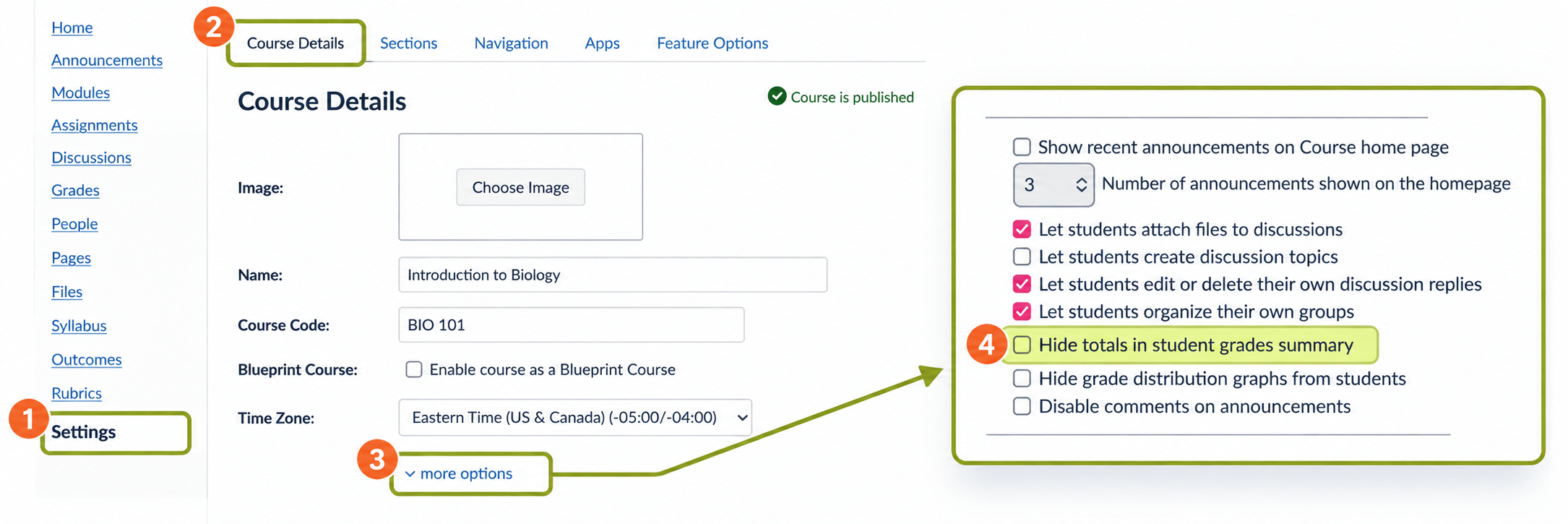
Students can use Grades to view their scores, feedback, submission statuses, and current course grade. What they see depends on your Gradebook settings and whether grades have been posted, so it is important to consider the student view when setting up and releasing grades.
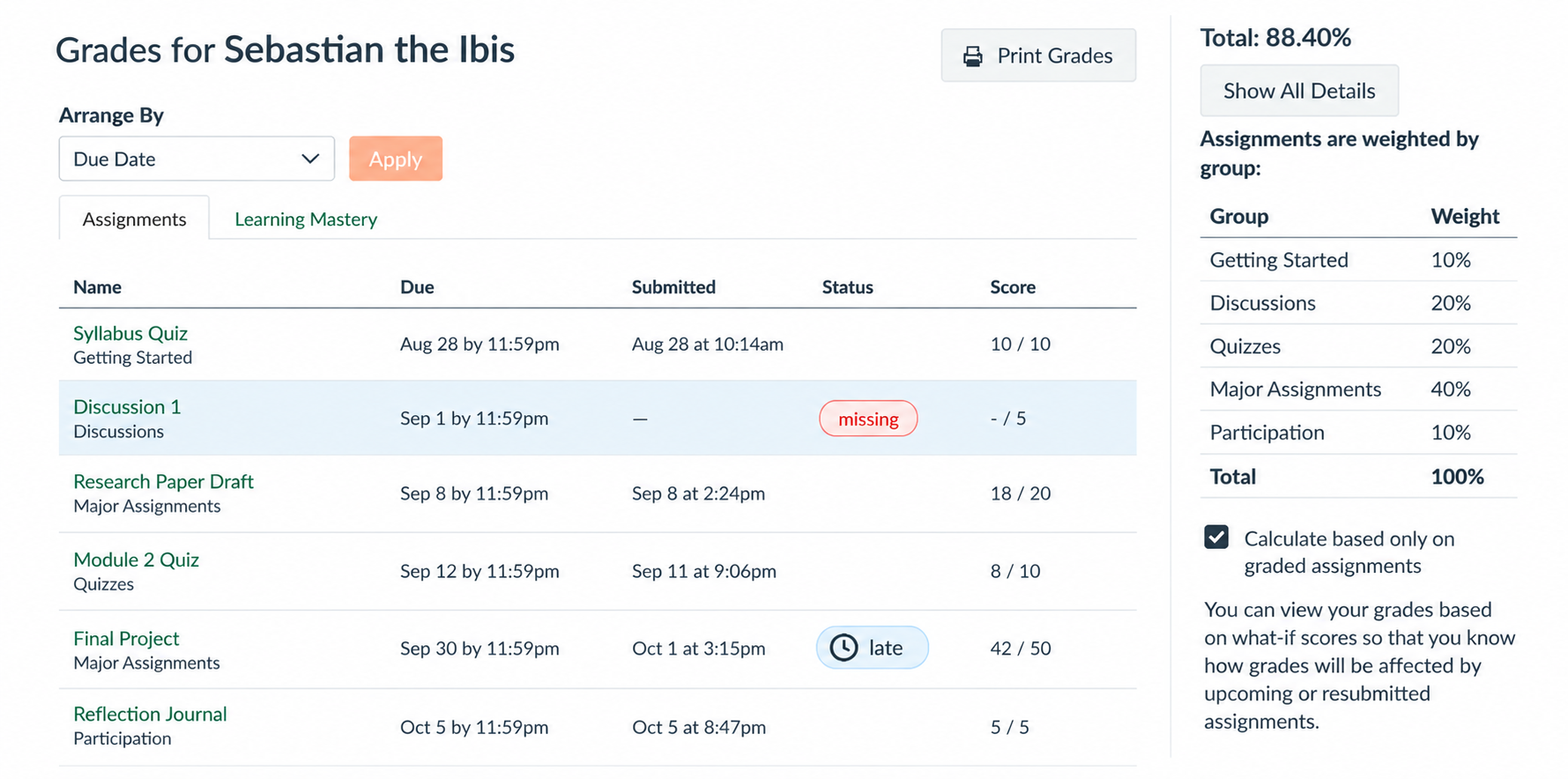
Canvas allows you to identify submissions as Missing, Late, or Excused and establish policies for how certain submissions are treated in the Gradebook. Missing and Late Work Before enabling these policies, consider how they align with the late and missing work policies communicated in your syllabus. Where is this in Canvas? Resources
Canvas can automatically identify submissions as late or missing based on an assignment's due date. In Gradebook Settings, you can also establish policies that automatically apply a grade to missing submissions or deduct points from late submissions.
Course Navigation → Grades → Gradebook Settings → Late Policies
Before submitting final grades, review your Canvas Gradebook to make sure grades are complete and calculating as intended. Check that assignments are in the correct Assignment Groups, weights are accurate (if applicable), missing work is handled appropriately, and your grading scheme aligns with the grading scale communicated in your syllabus. Overriding a Final Grade Use a final grade override intentionally. If a student's calculated grade is unexpected, first review the student's grades and your course's Assignment Groups, weights, grading scheme, and other Gradebook settings to identify the cause. Where is this in Canvas? Course Navigation → Grades Resources
Canvas also provides a Final Grade Override option that allows you to enter a different final grade for an individual student without changing the grades for individual assignments.
If a grade is not calculating the way you expect, start by reviewing the activity in Assignments and the Assignment Group it belongs to. Points, Assignment Groups, weights, and other assignment settings can affect what you see in the Gradebook. For additional assistance, you can: